How to create Journal Register?
Navigation
Journal Register can be created in two ways.
Flow-1:
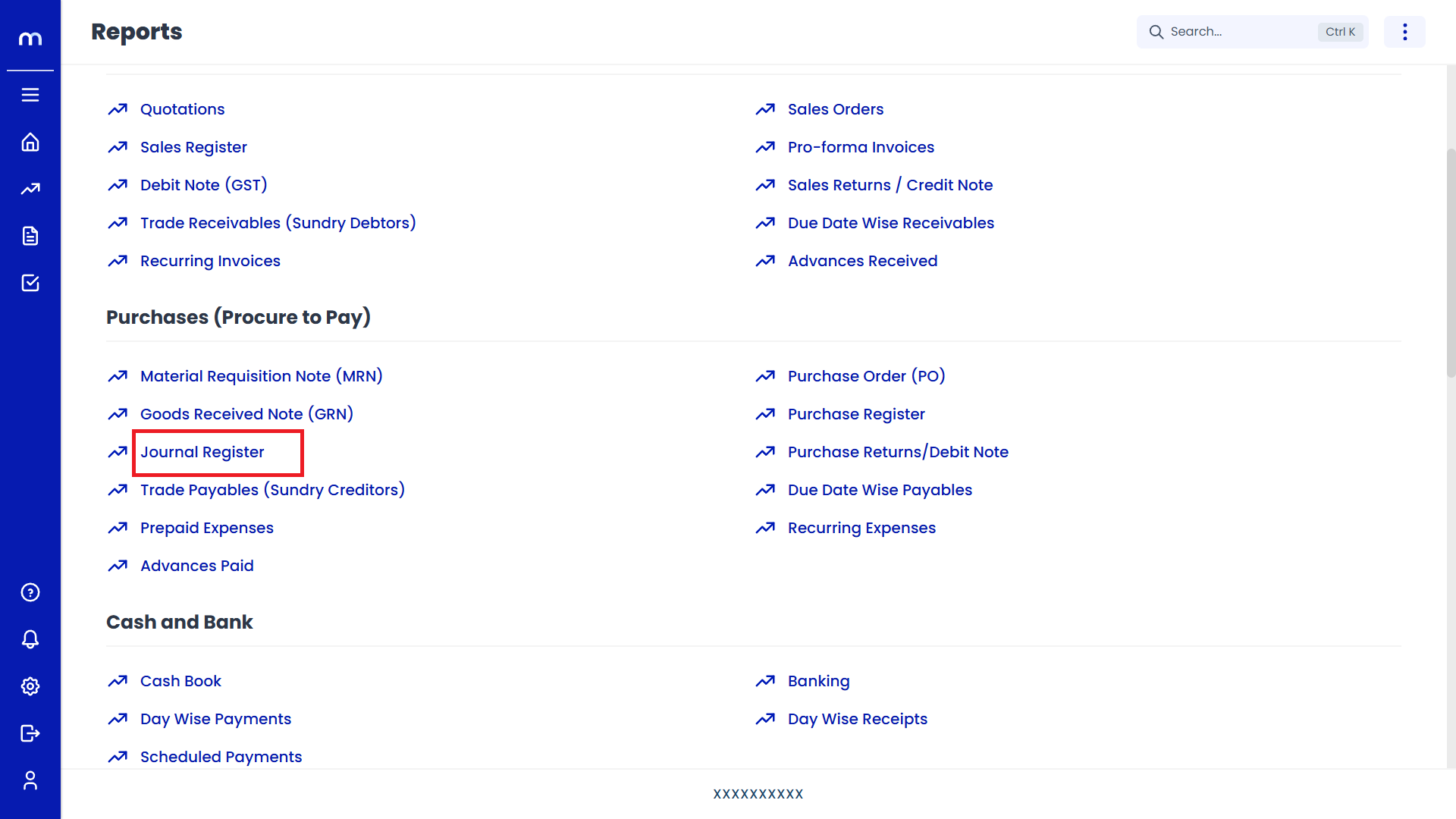
Go to Home > Reports > Purchases (Procure to Pay) > Journal Register. Under Purchases (Procure to Pay), click on Journal Register.
Flow-2:
Go to Dashboard > Add New > Journal Register.
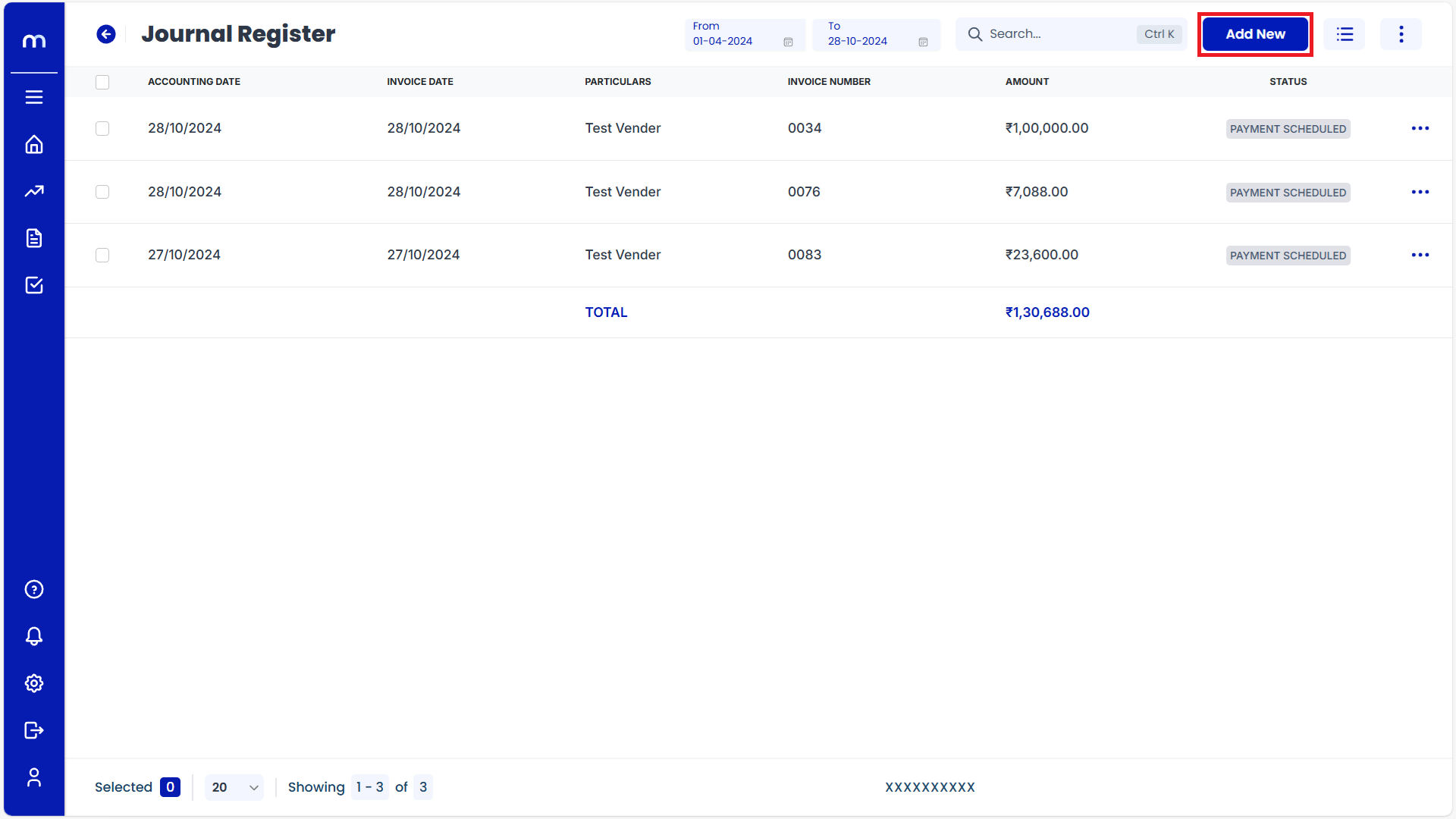
Click on Add New.
Journal Register Page will be displayed as follows and Click on Add New Button.
Click on Submit
Create Journal page will be displayed as Follows, Fill in all required details and click on Save button.
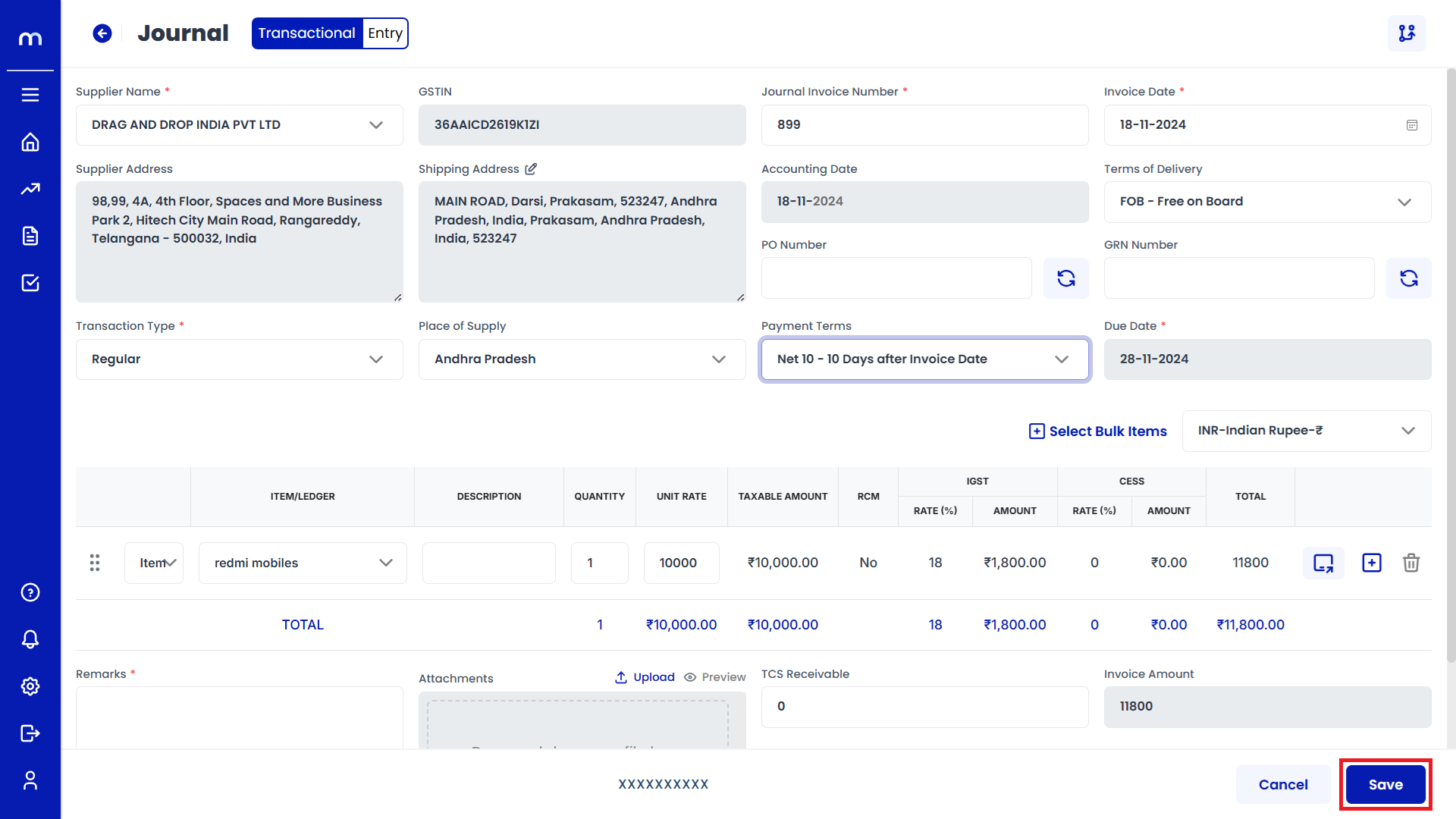
Select on Journal Register
Journal Register page will be created successfully and Select on Journal Register
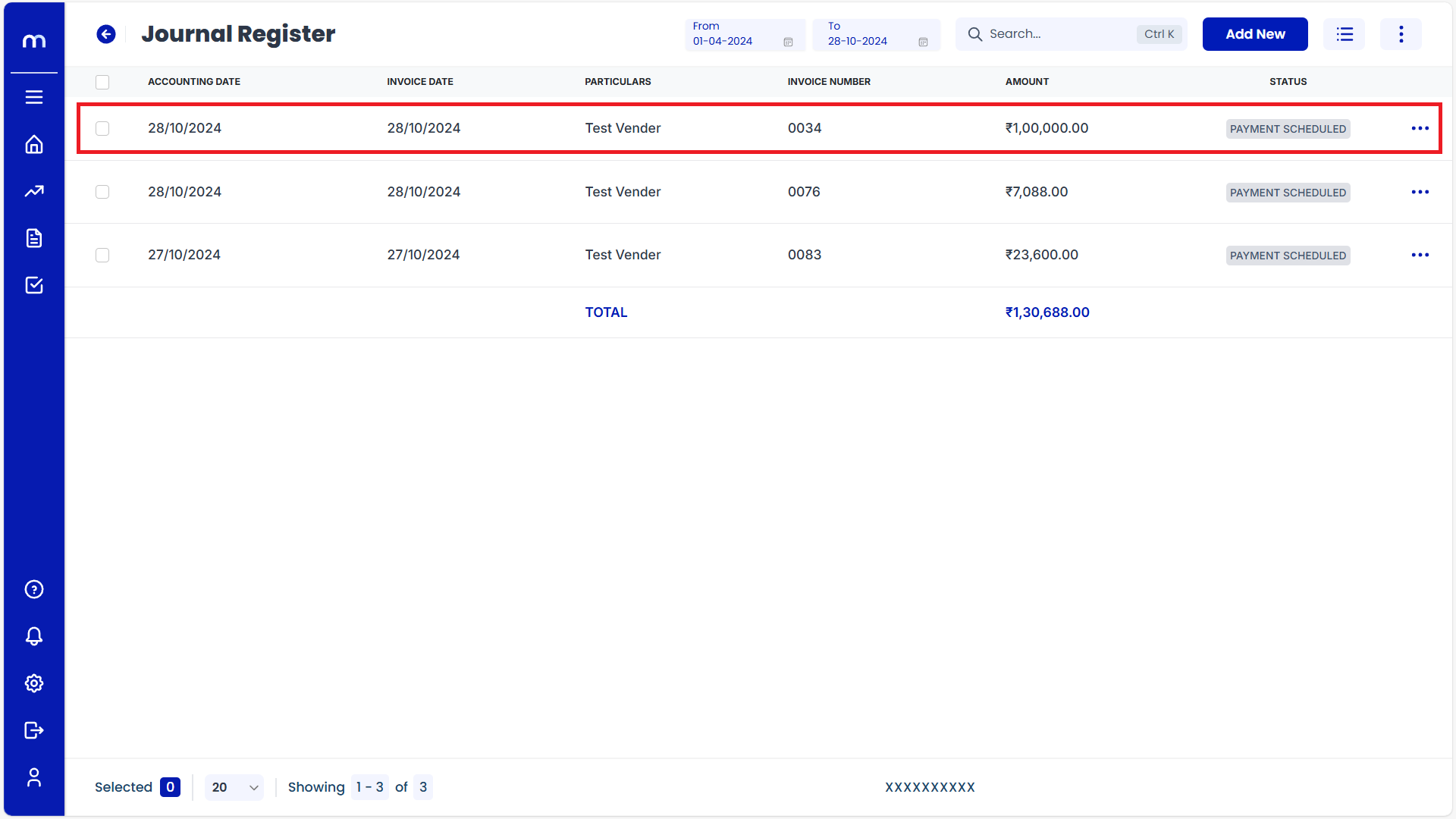
Click on Edit
Journal Register Template page will be displayed as fallows and Click on Edit button.
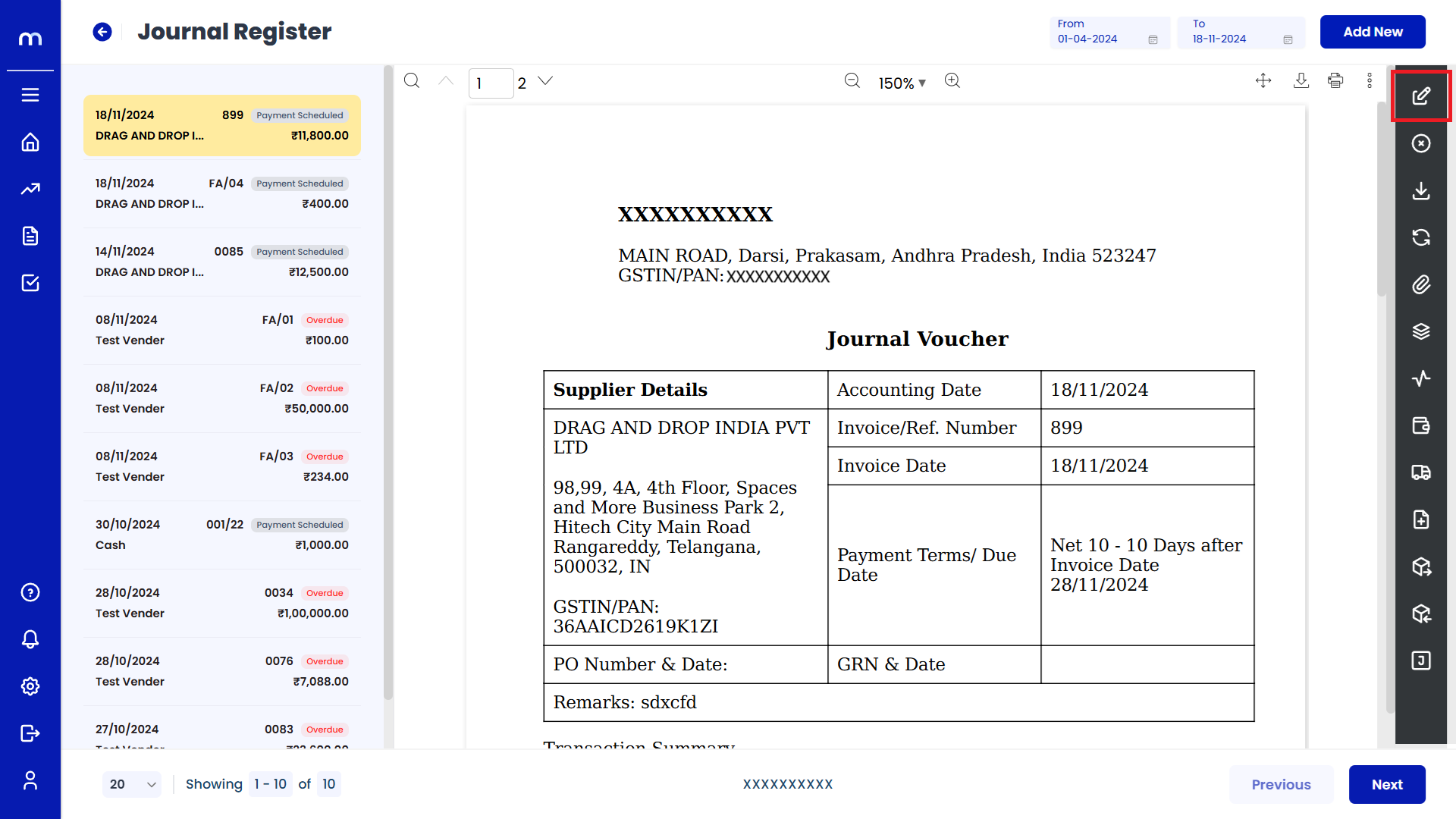
Click on Update
Create Journal page will be displayed as Follows, Change the mandatory fields and click Update button.
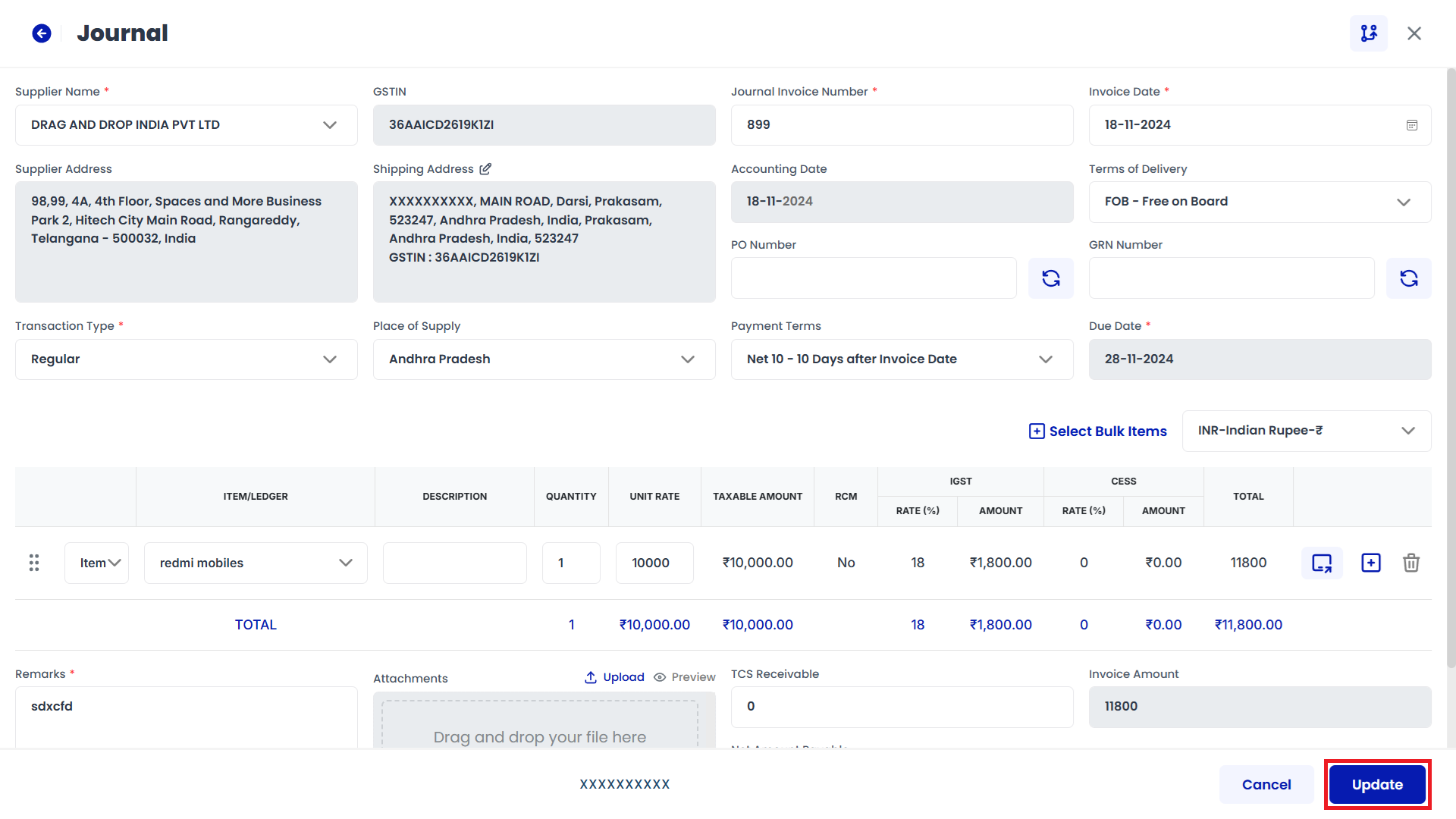
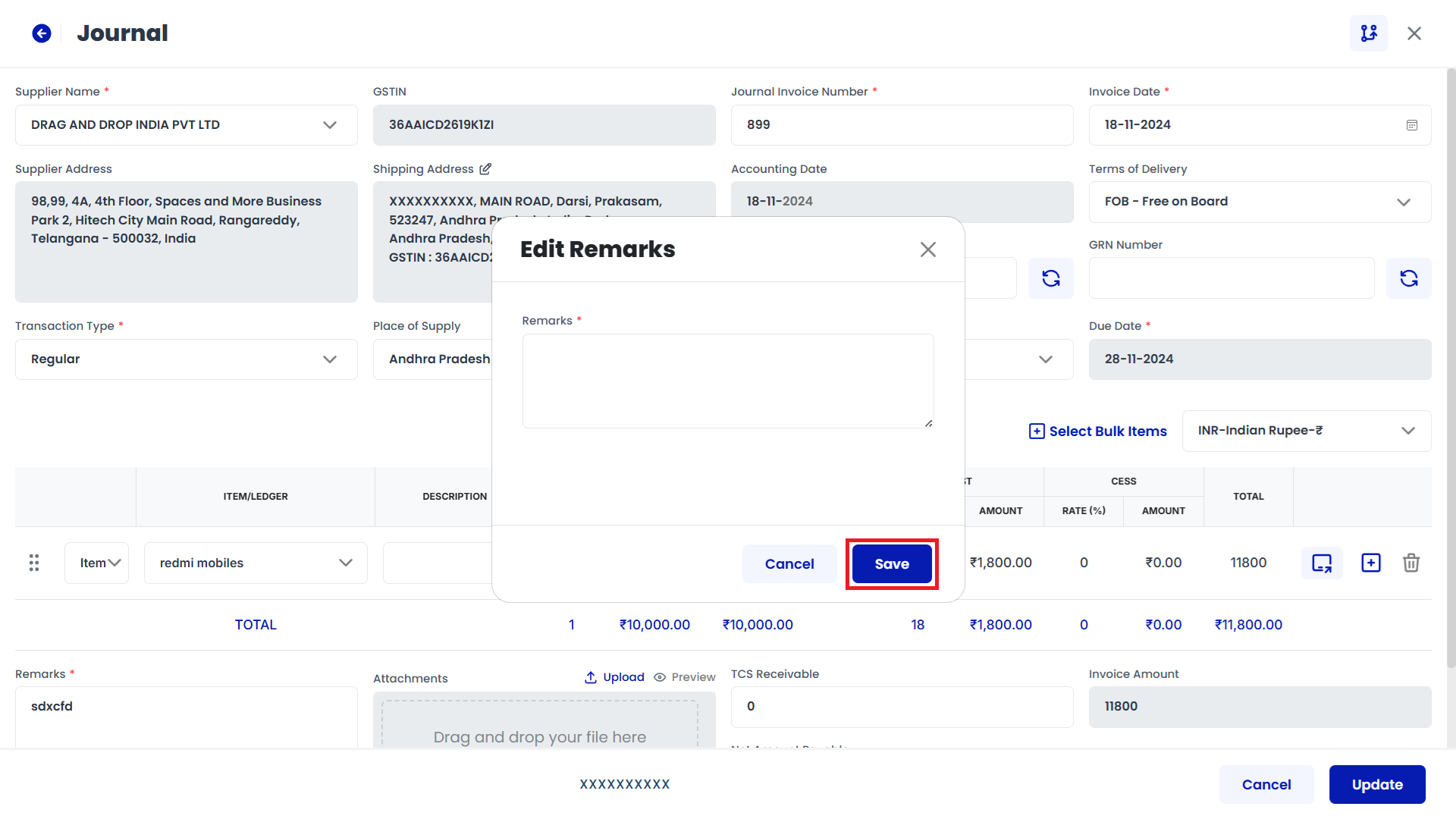
Click on Save
Edit Remarks page will be displayed as Follows, Enter the Remarks and click Save button.
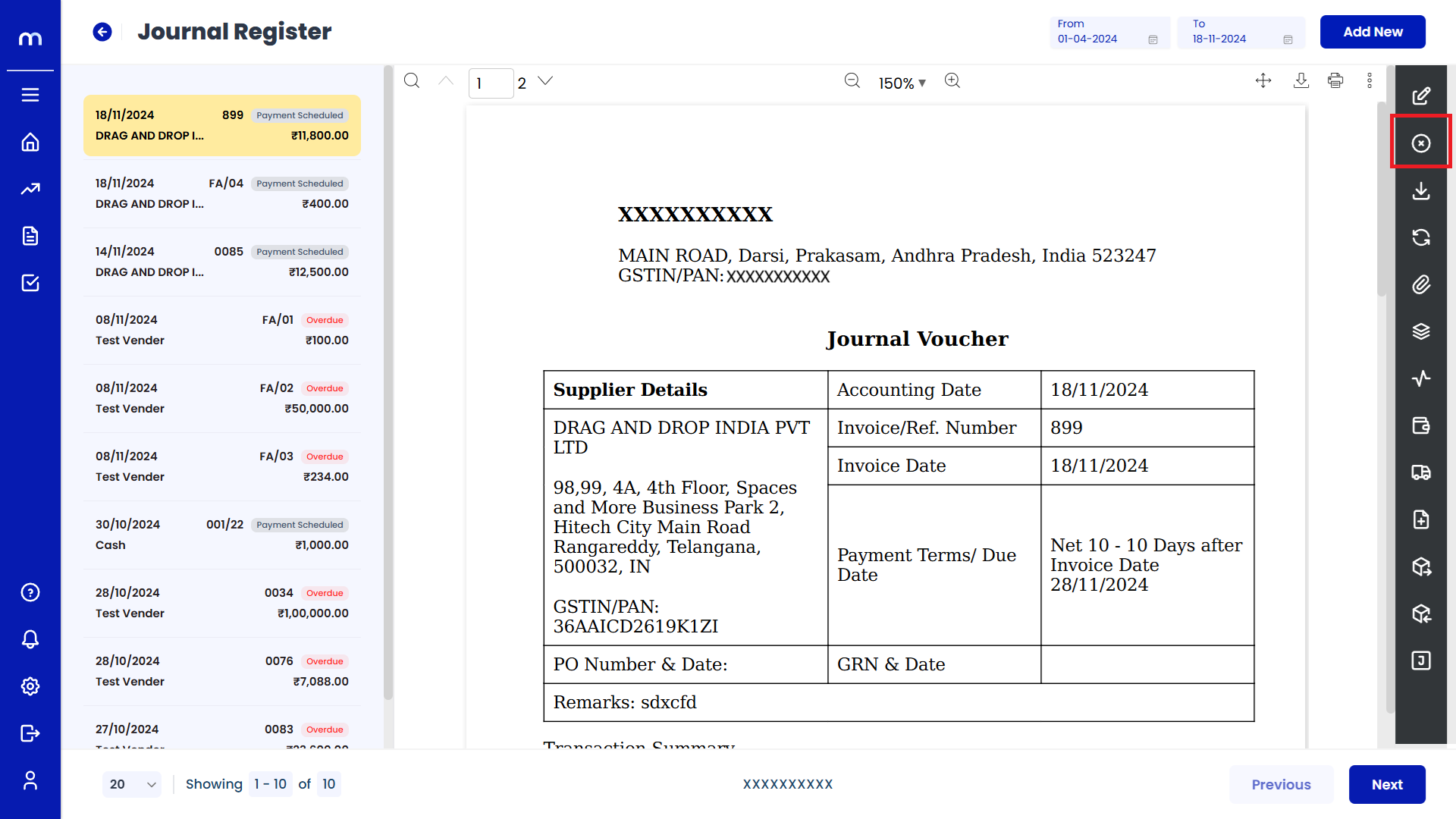
Click on Cancel
Journal Register Template page will be displayed as fallows and Click on Cancel button.
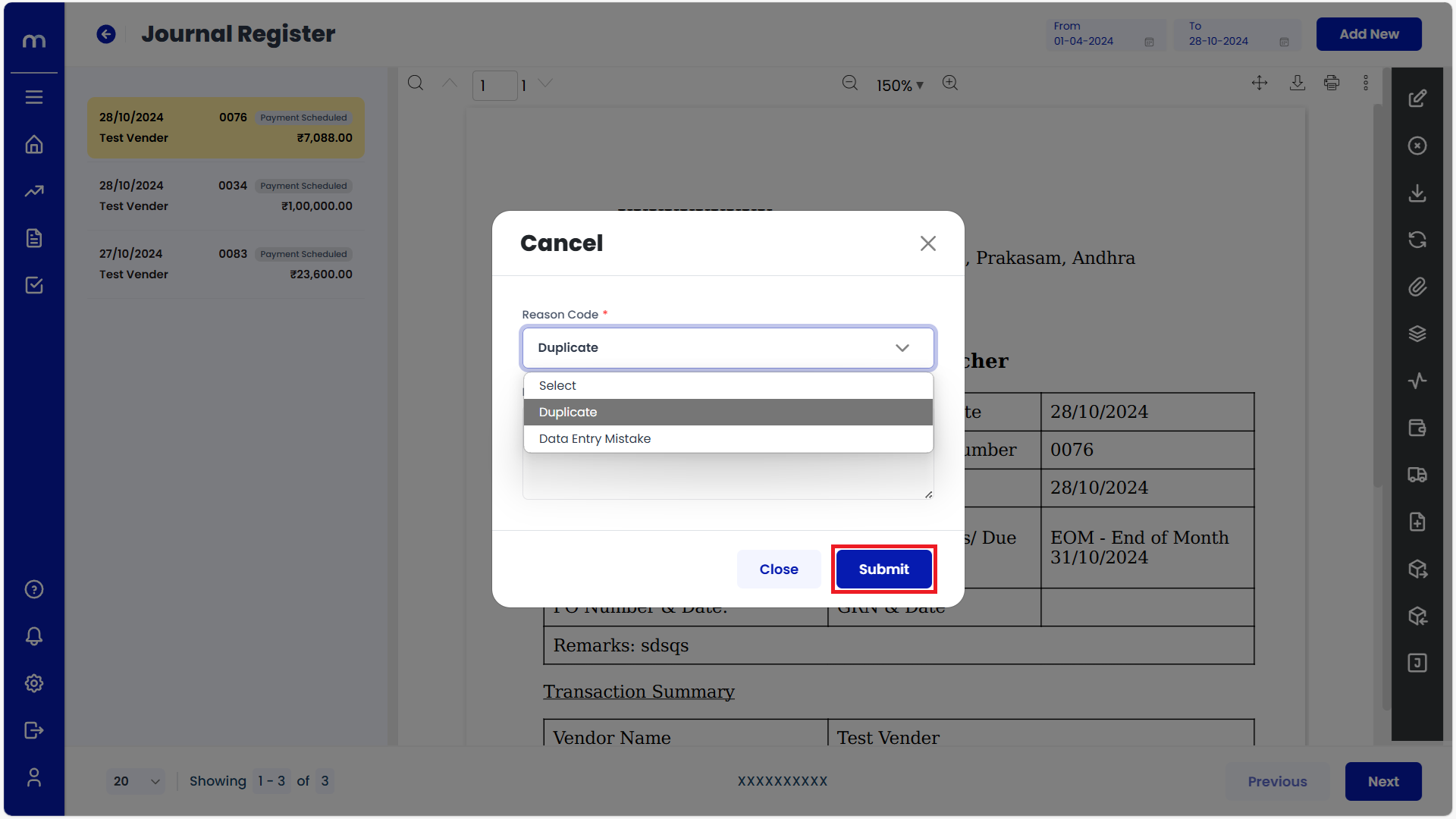
Click on Submit
Cancel page will be displayed as Follows, Enter the Reason code and Remarks and click Submit button.
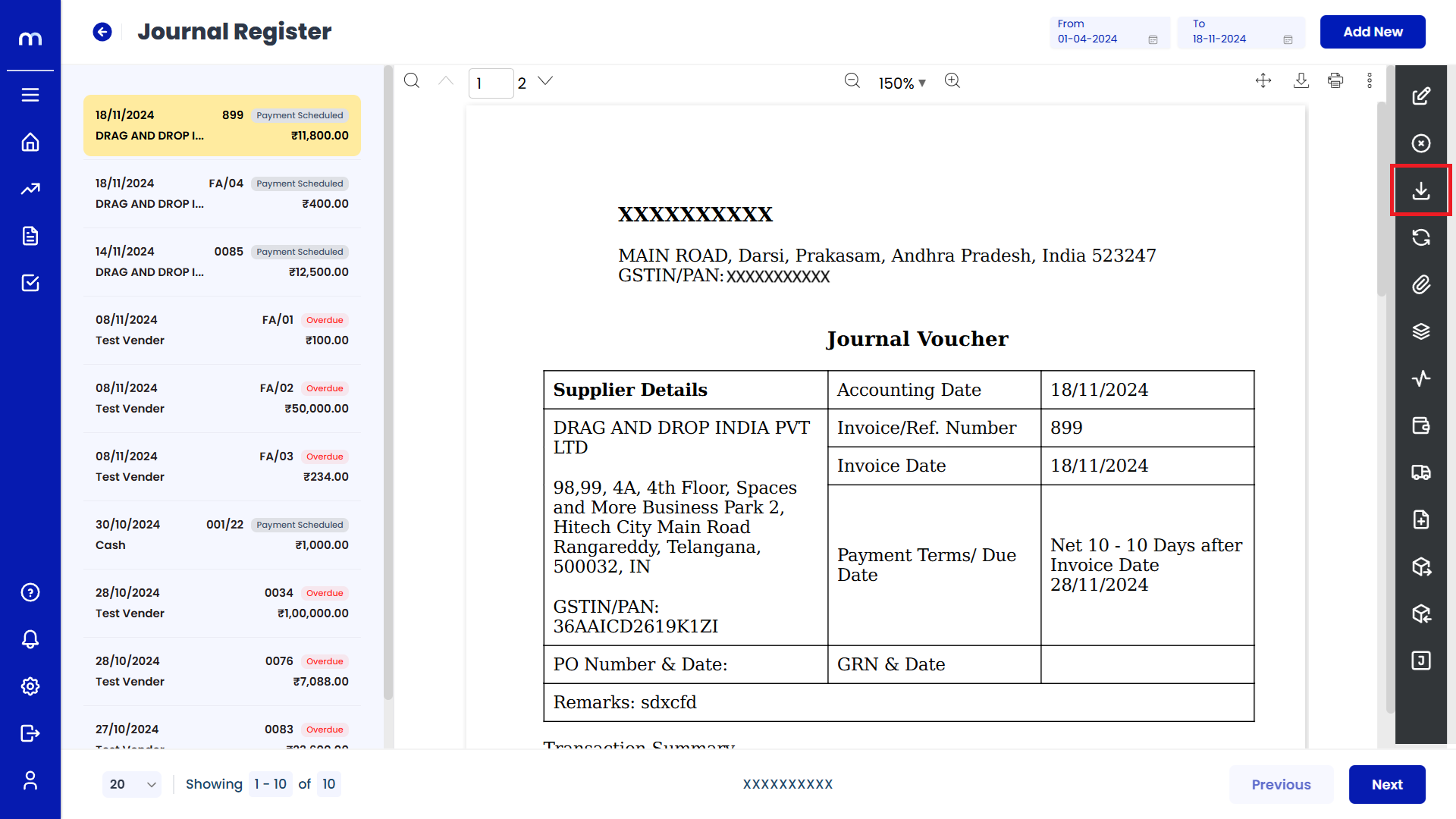
Click on Download
Journal Register Template page will be displayed as fallows and Click on Download button. Download the provided Template file.
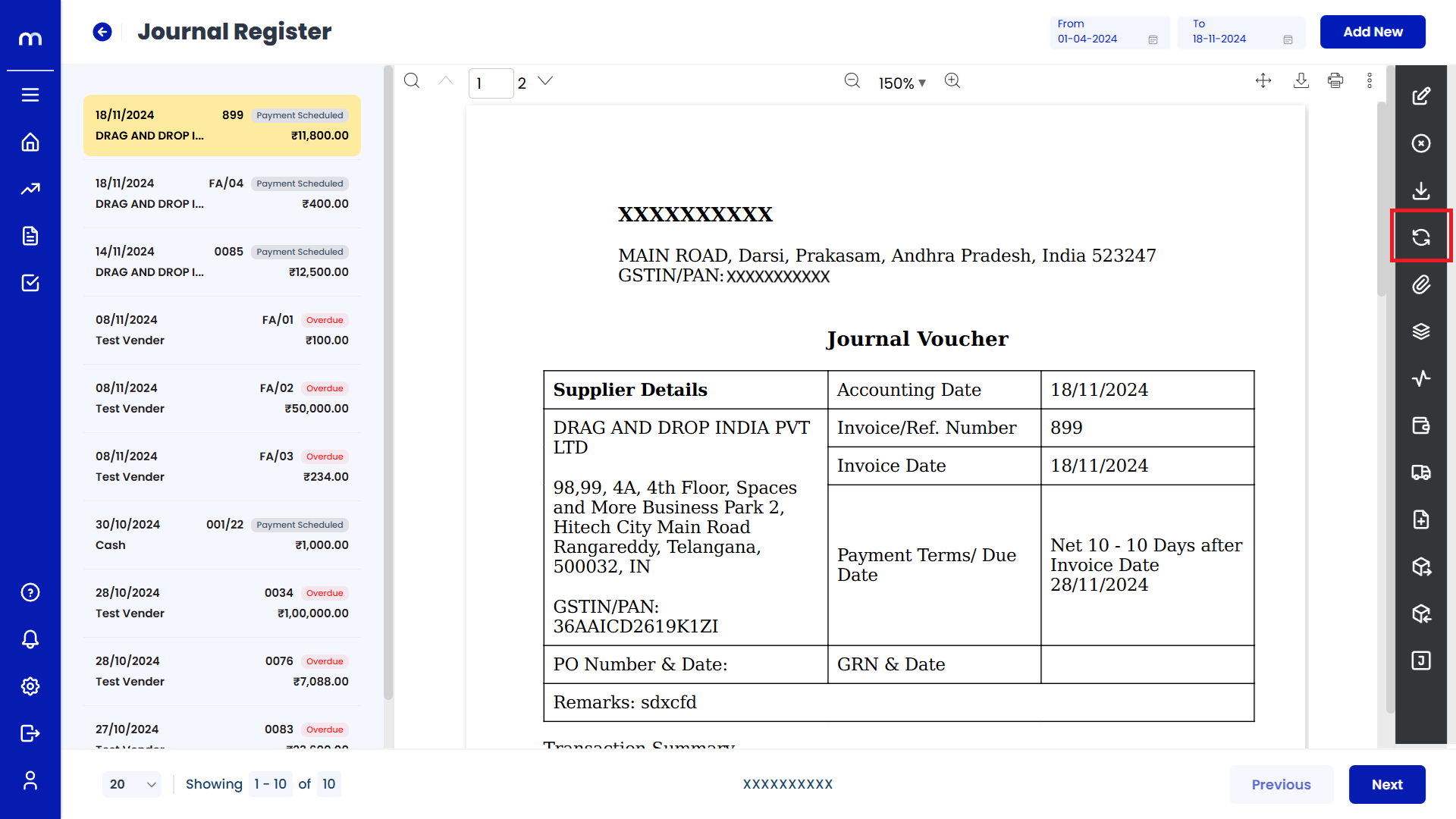
Click on Transaction Flow
Journal Register Template page will be displayed as fallows and Click on Transaction Flow button.
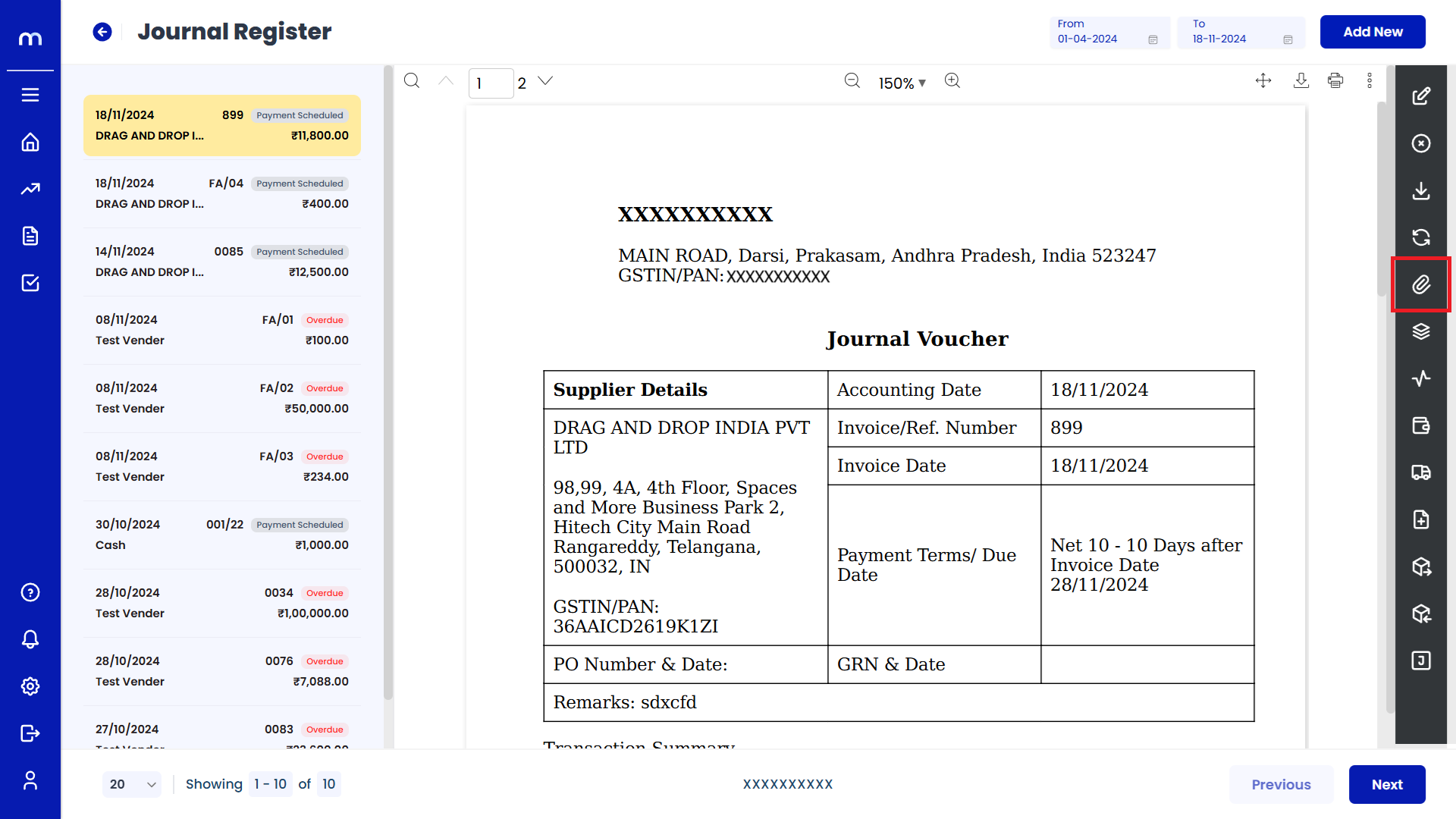
Click on Attachments
Journal Register Template page will be displayed as fallows and Click on Attachments button.
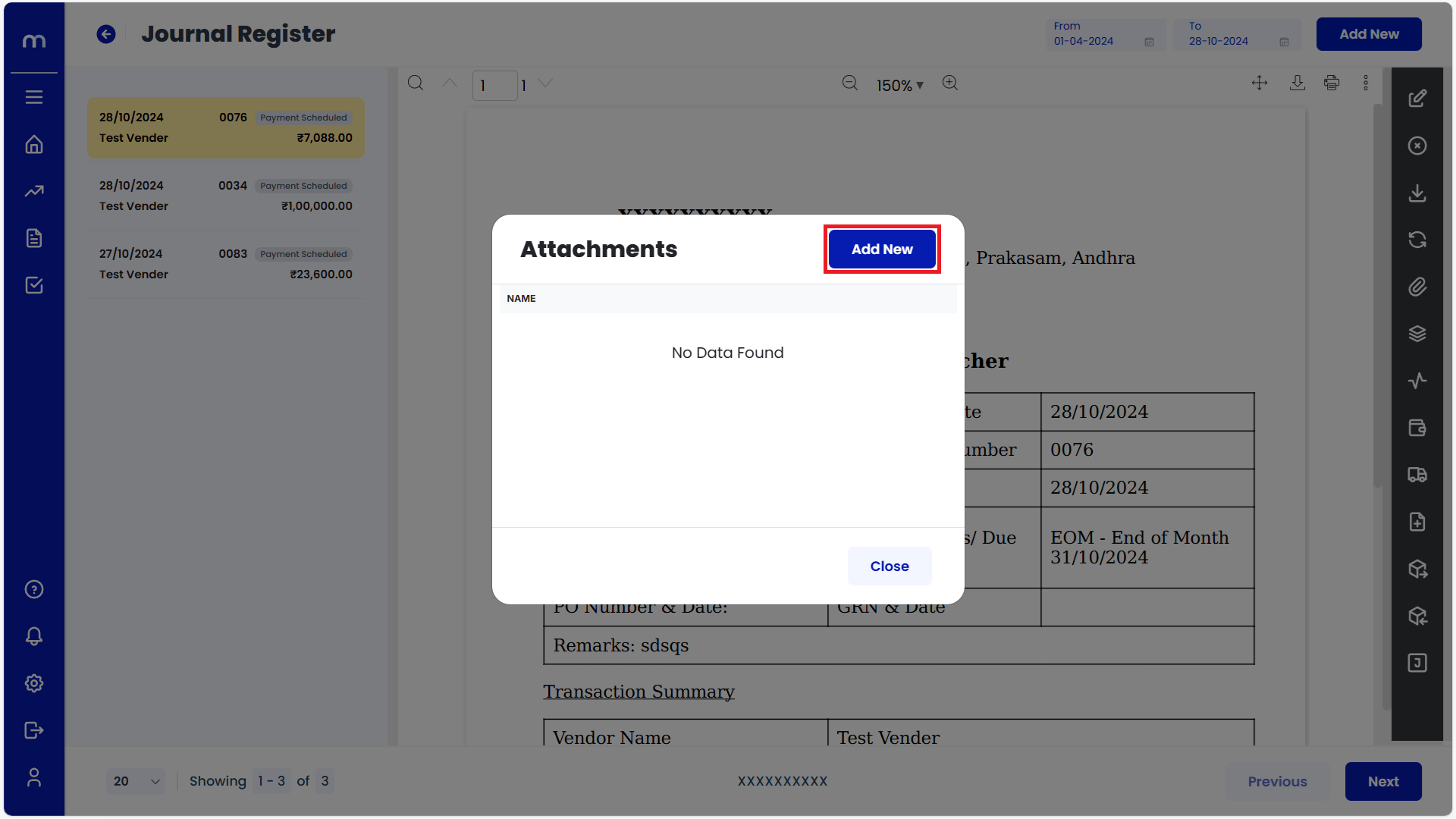
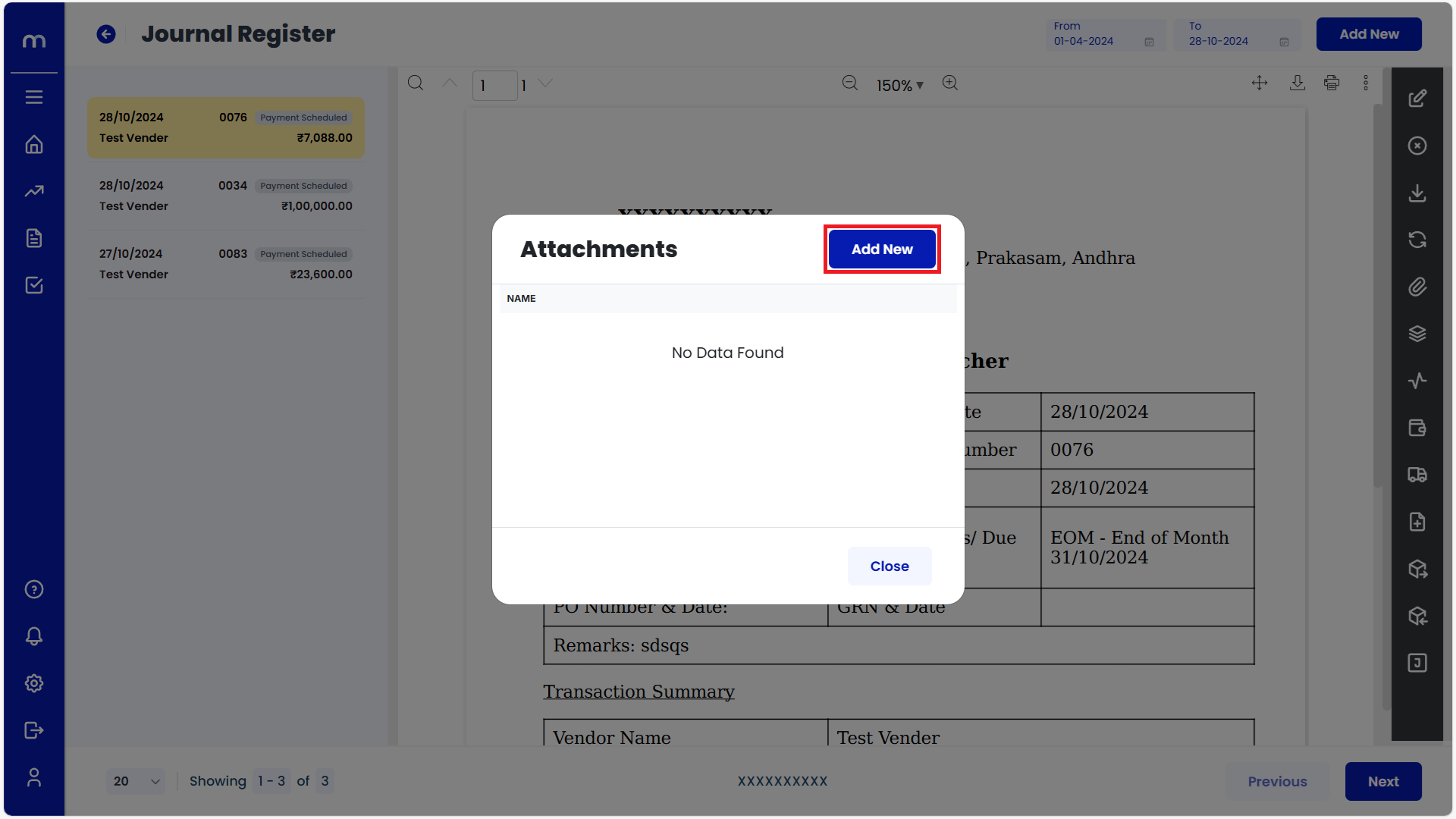
Click on Add New
Attachment page will be displayed as Follows and click Add New button.
Uploaded File
PDF File was uploaded successfully.
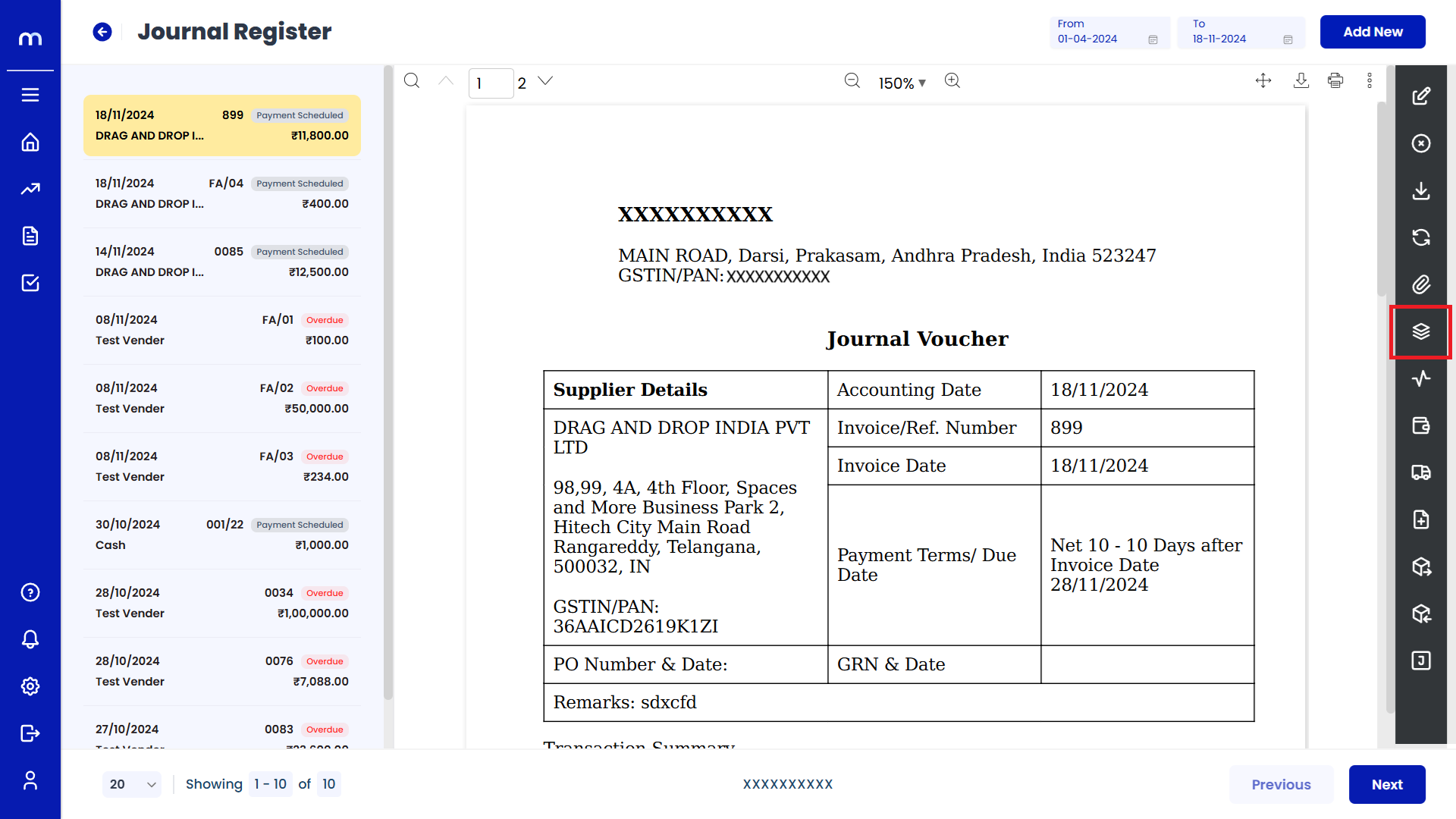
Click on View Versions
Journal Register Template page will be displayed as fallows and Click on View Versions button.
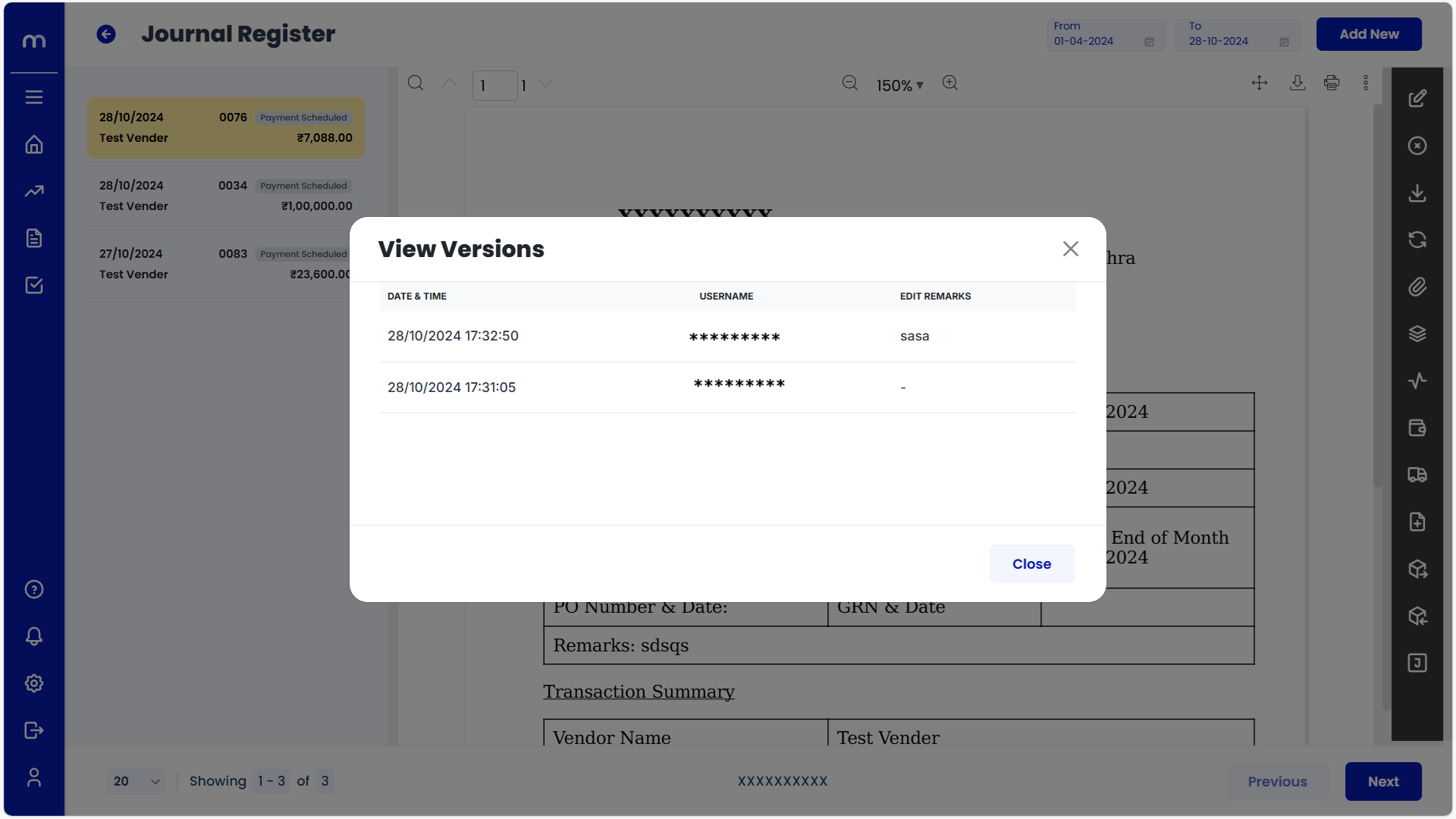
View Versions List
View Versions page will be displayed as fallows.
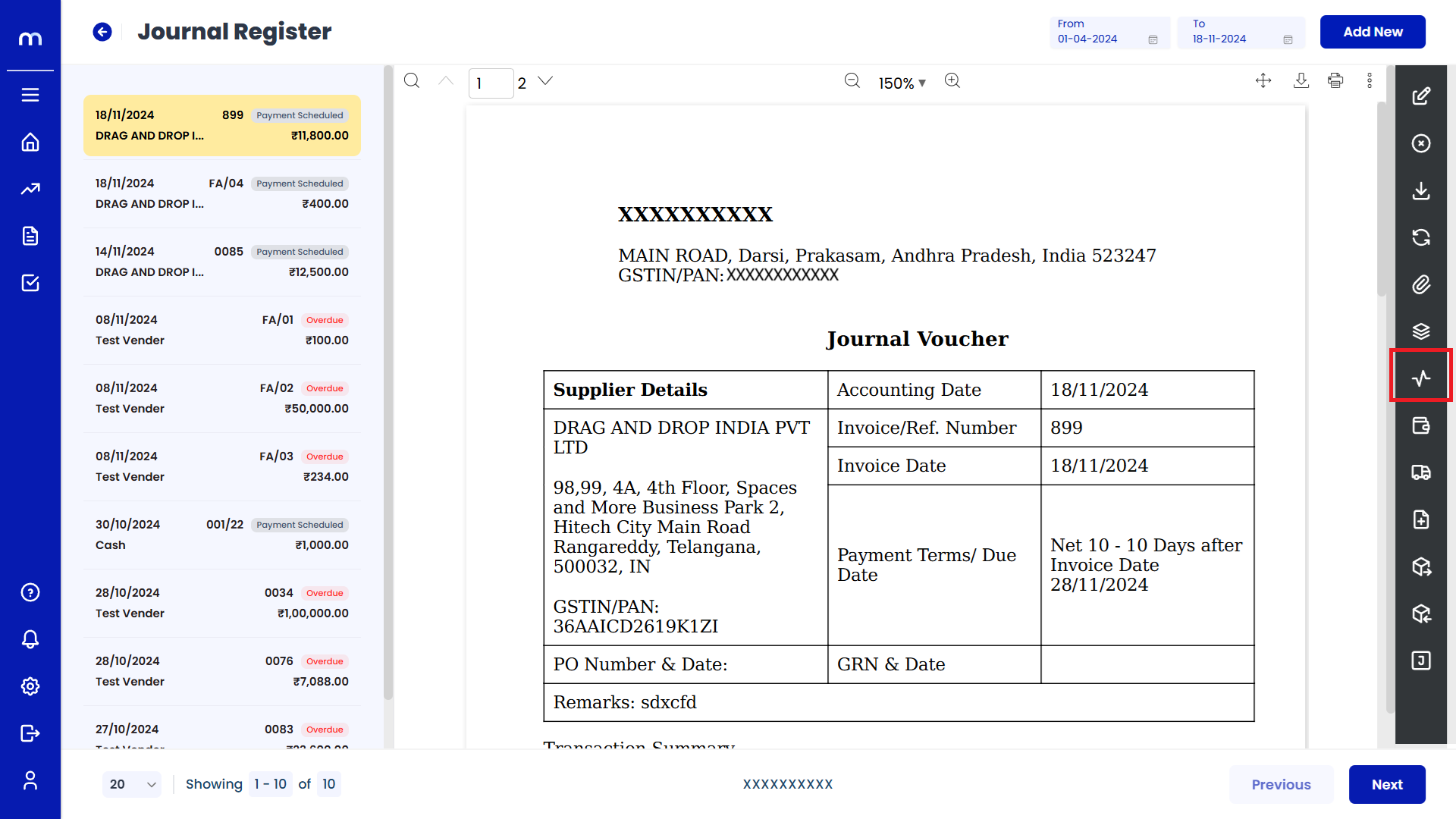
Click on Activity Report
Journal Register Template page will be displayed as fallows and Click on Activity Report button.
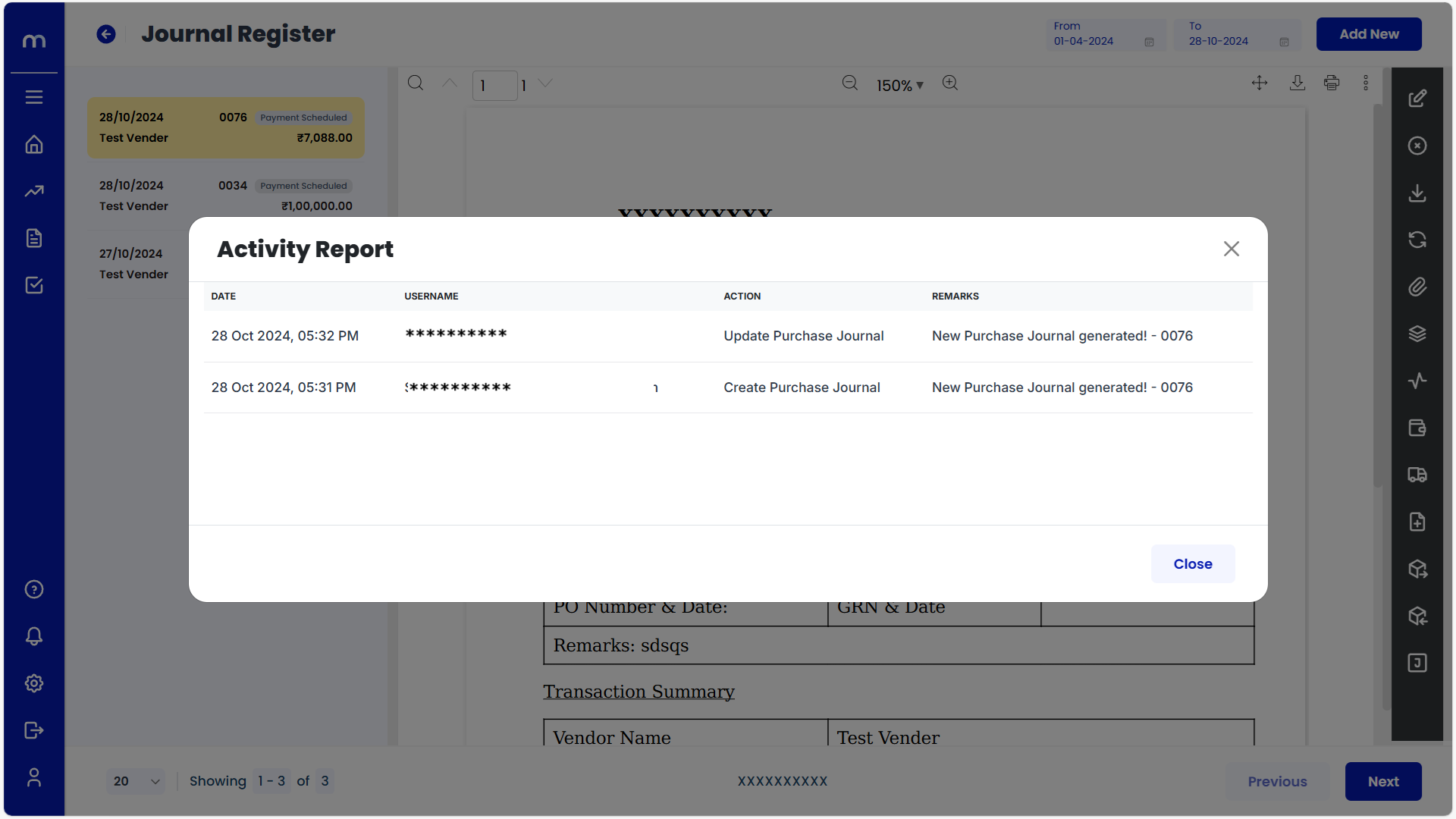
Activity Report List
Activity Report page will be displayed as fallows.
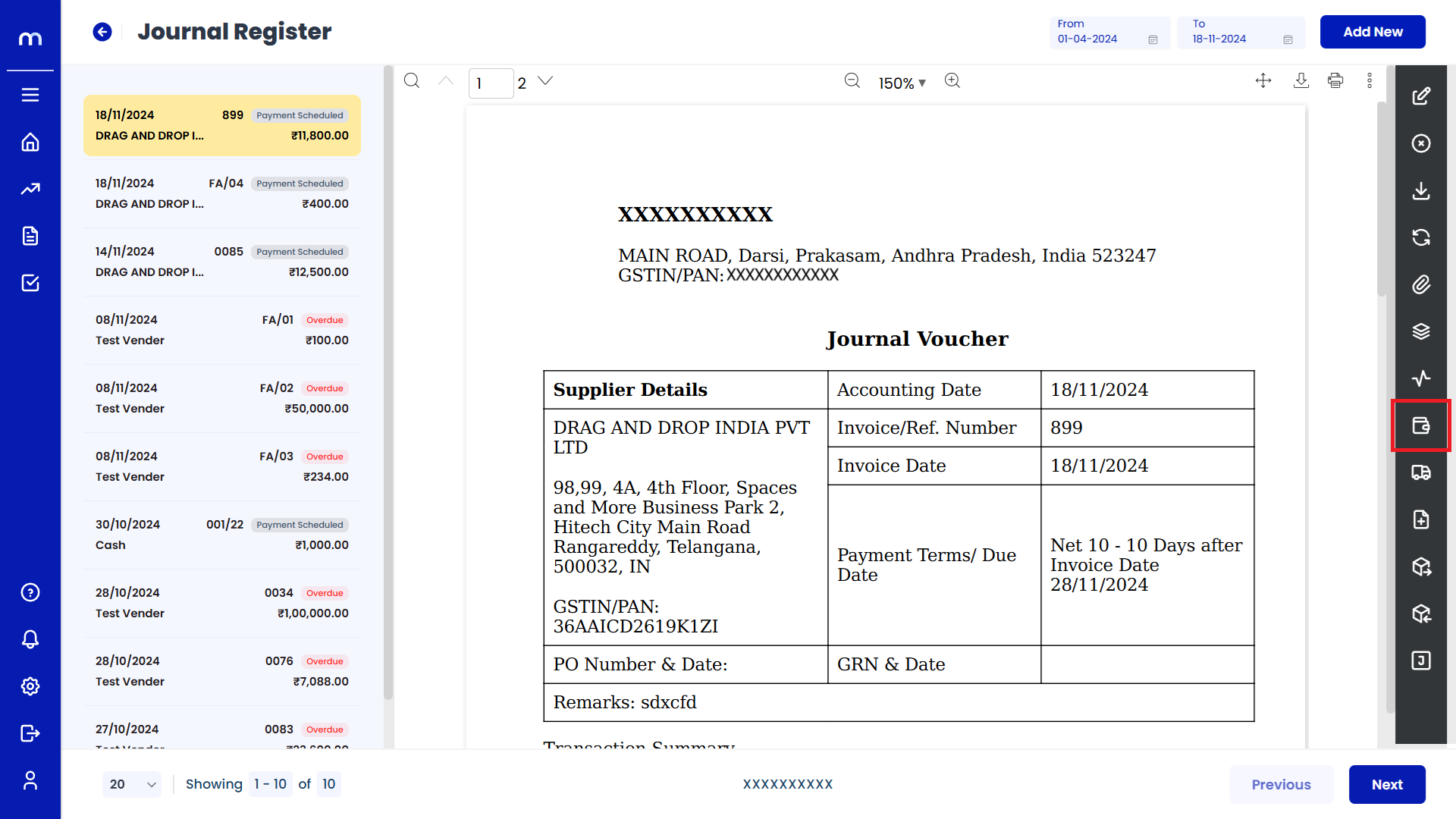
Click on Mark as Paid
Journal Register Template page will be displayed as fallows and Click on Mark as Paid button.
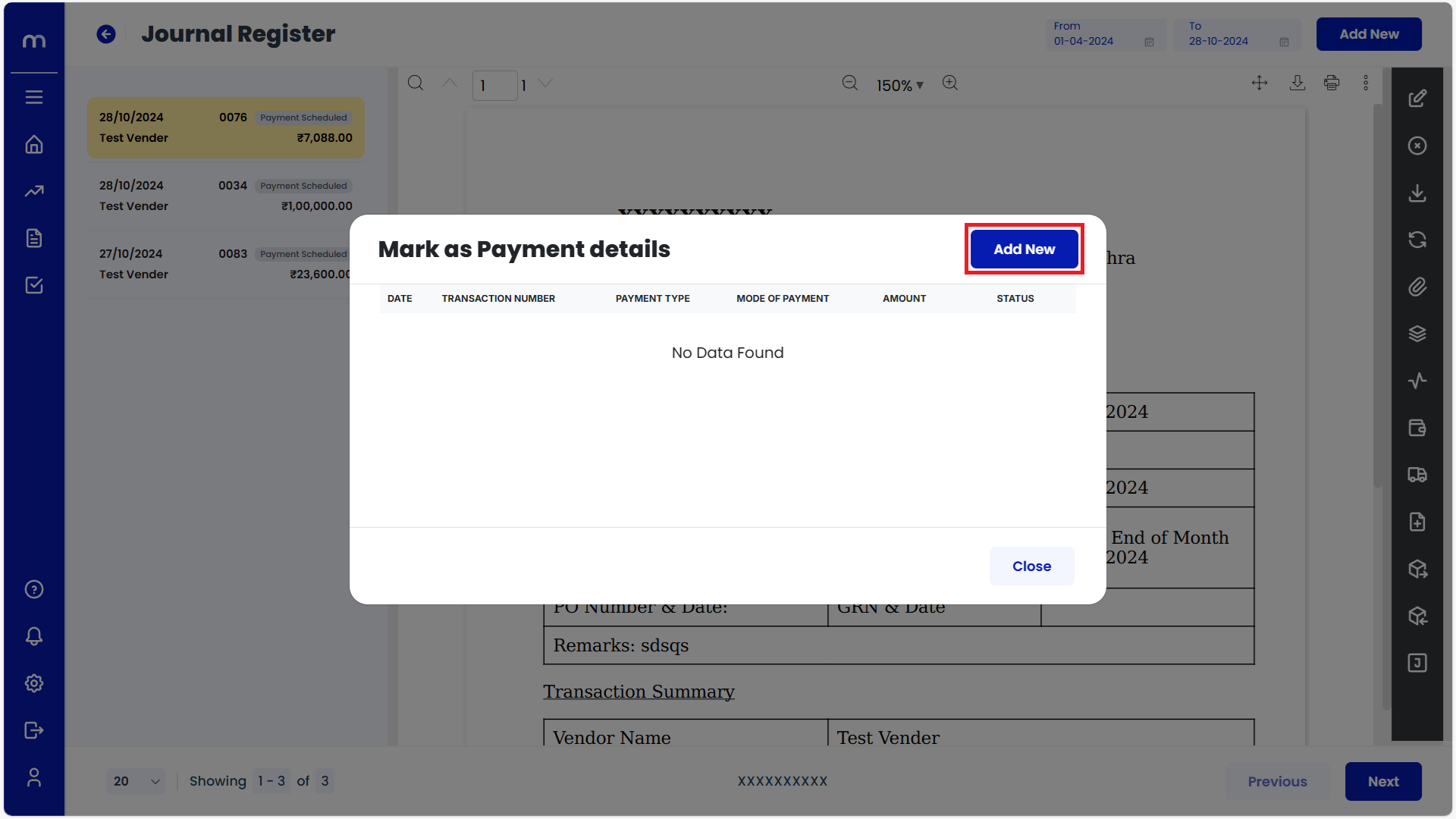
Click on Add New
Mark as Payment Details page will be displayed as fallows and Click on Add New button.
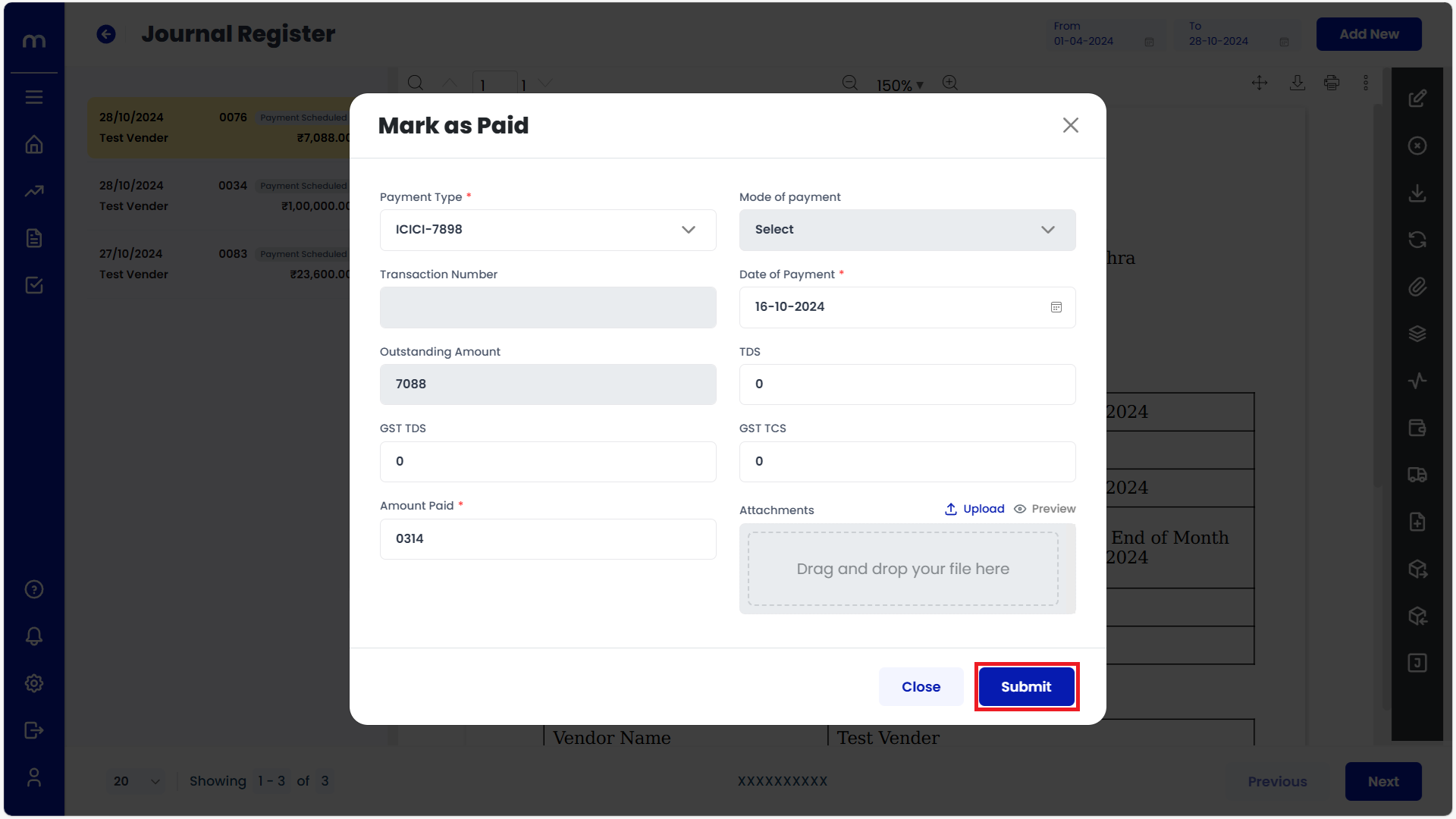
Click on Submit
Mark as Paid page will be displayed as fallows, Fill in all required payment details and Click on Submit button.
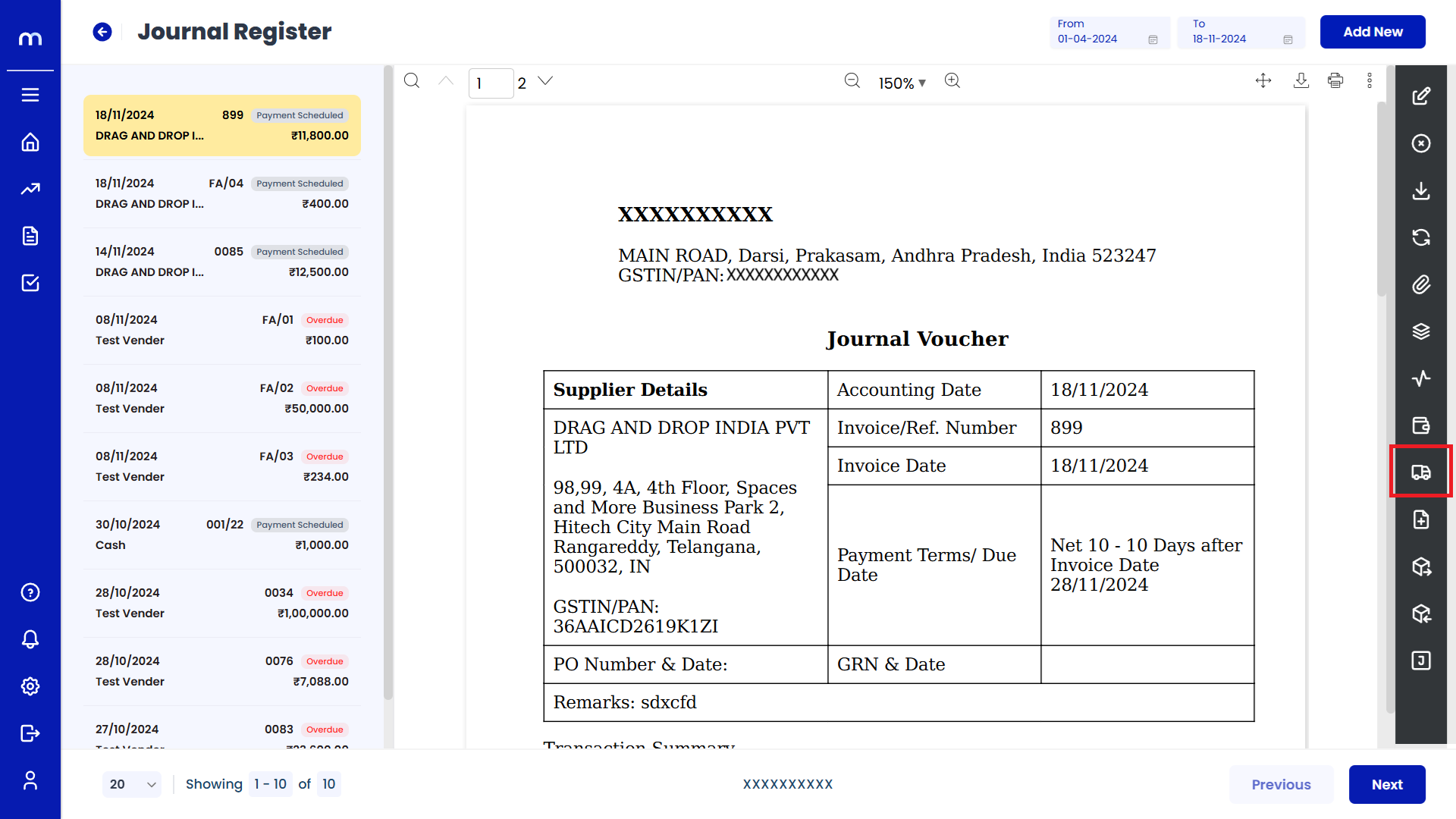
Click on Generate E-Way Bill
Journal Register Template page will be displayed as fallows and Click on Generate E-Way Bill button.
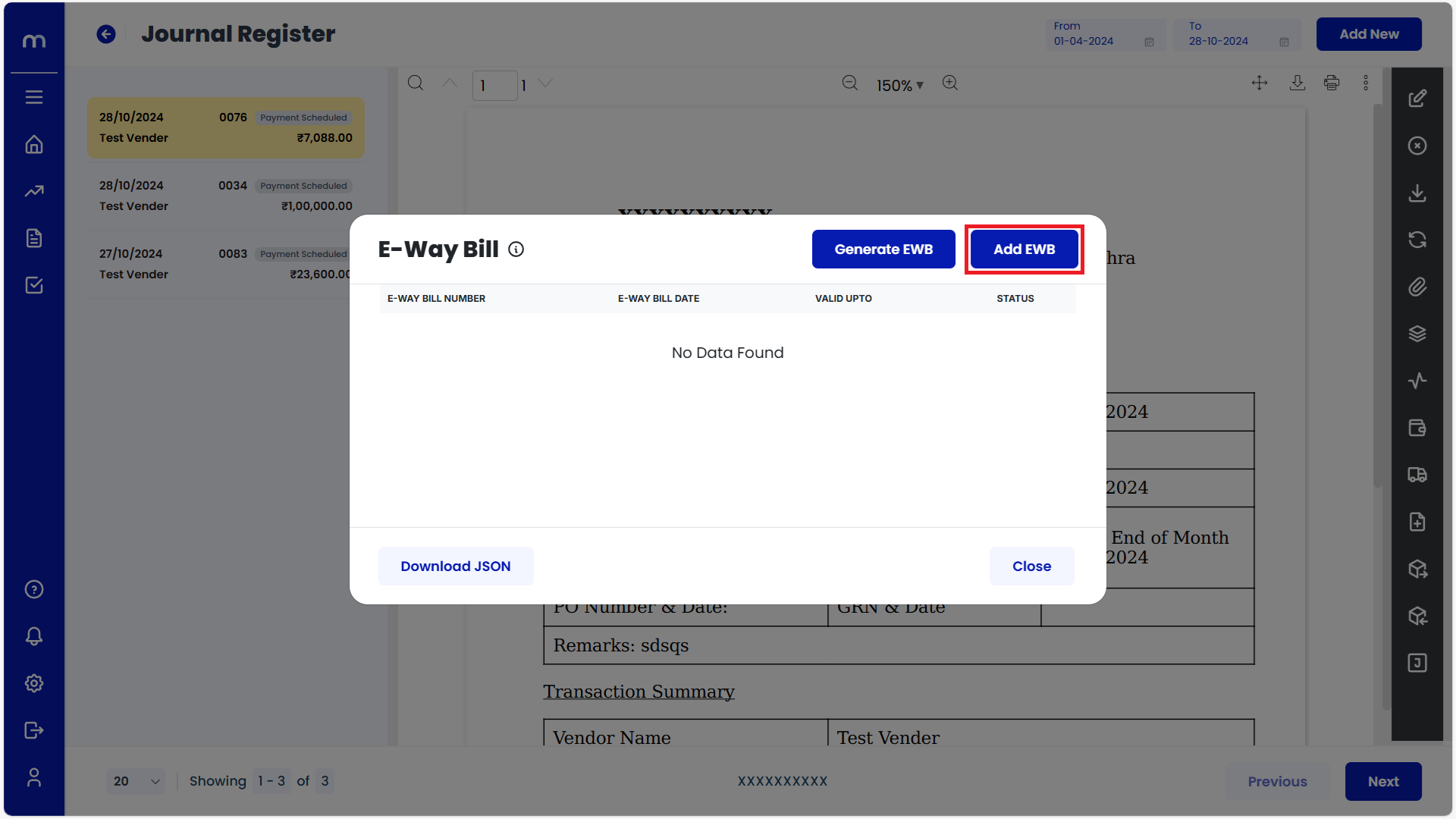
Click on Add E-Way Bill
E-Way Bill page will be displayed as fallows and Click on Add E-Way Bill button.
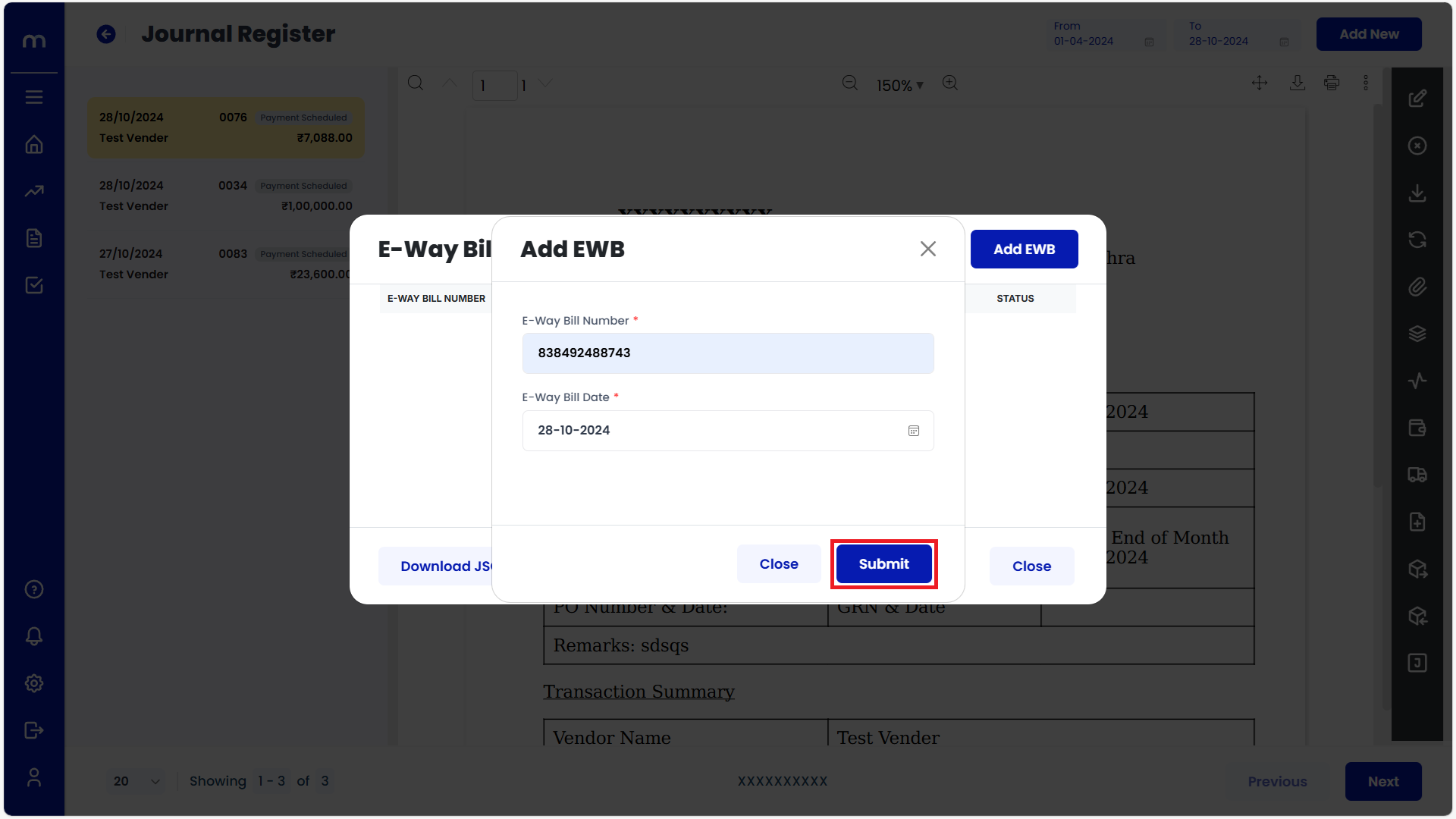
Click on Submit
Add E-Way Bill page will be displayed as fallows. Fill in E-Way Bill Number and E-Way Bill Date. Then next click on Submit button.
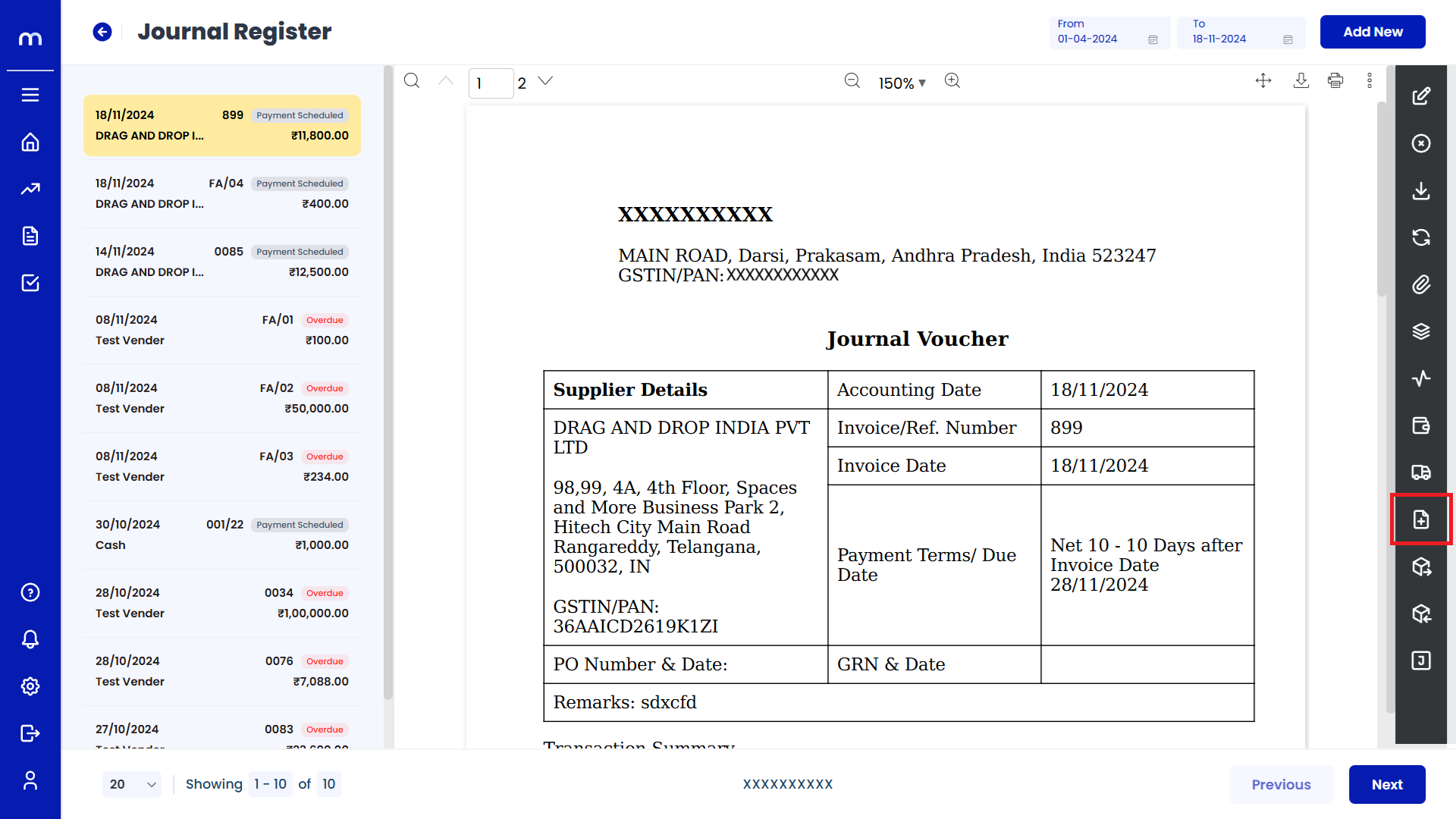
Click on Generate Debit Note
Journal Register Template page will be displayed as fallows and Click on Generate Debit Note button.
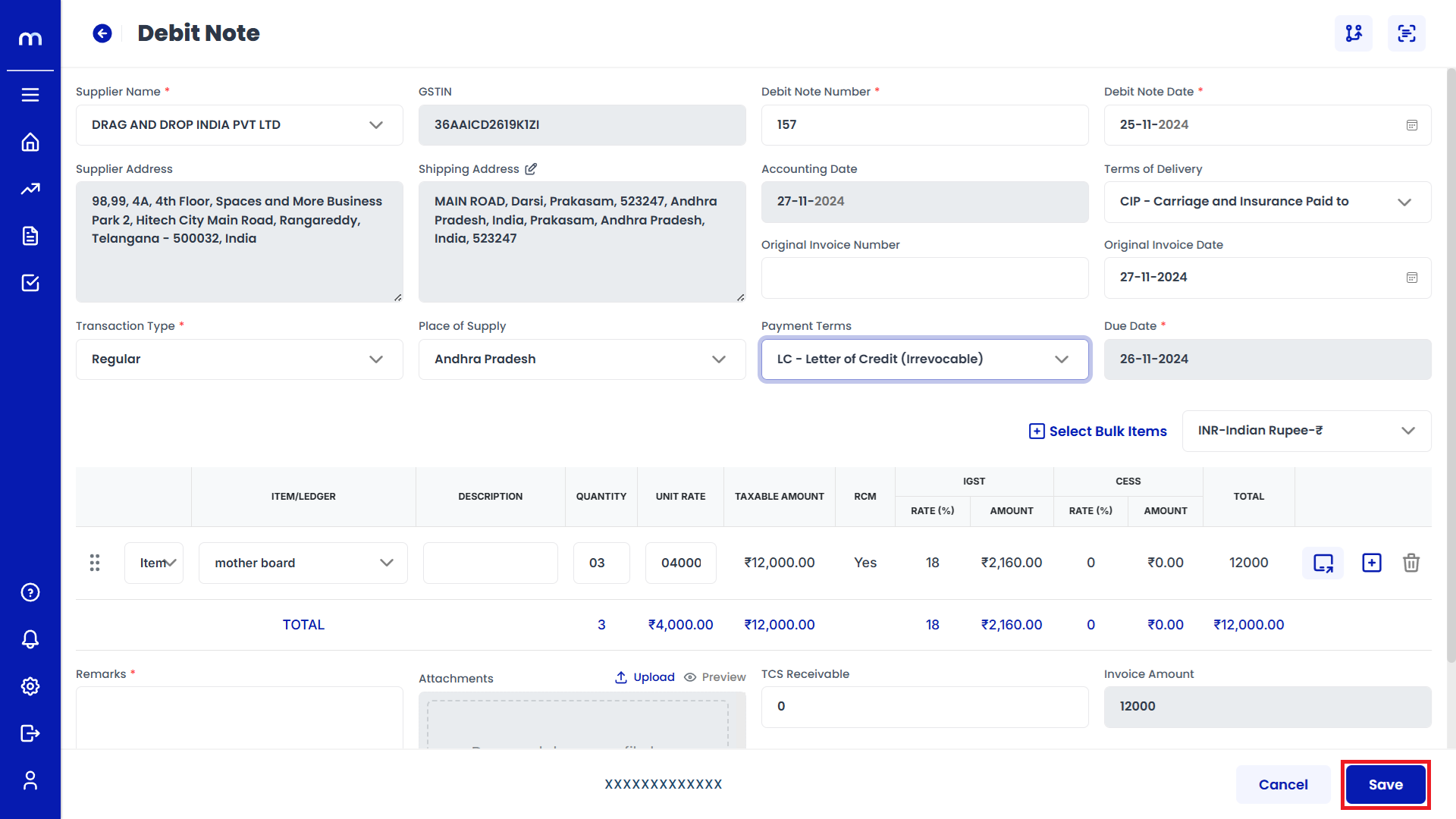
Click on Save
Debit Note page will be displayed as fallows, Fill in all required details and Click on Save button.
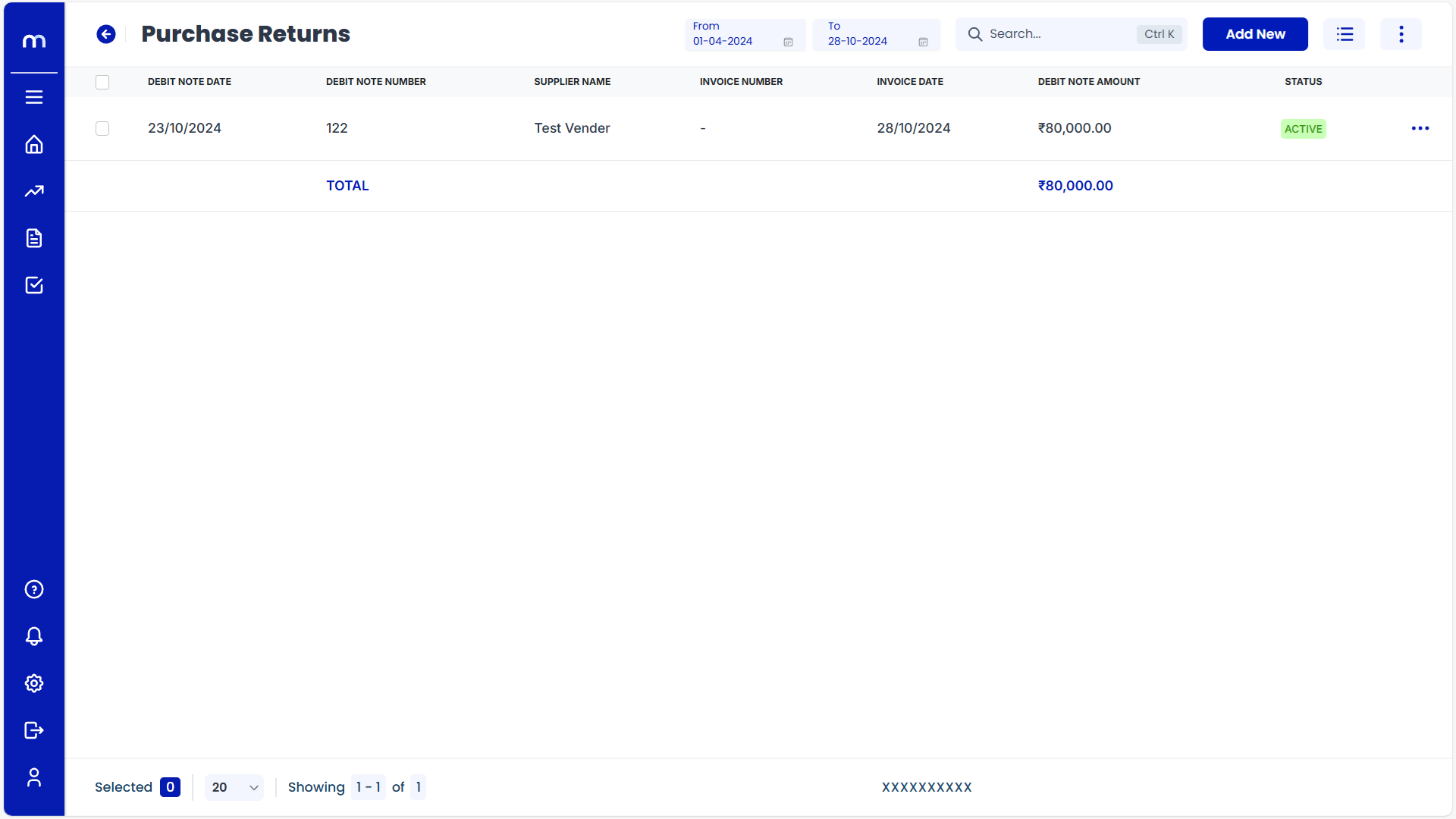
Created Debit Note
Debit Note page will be created successfully.
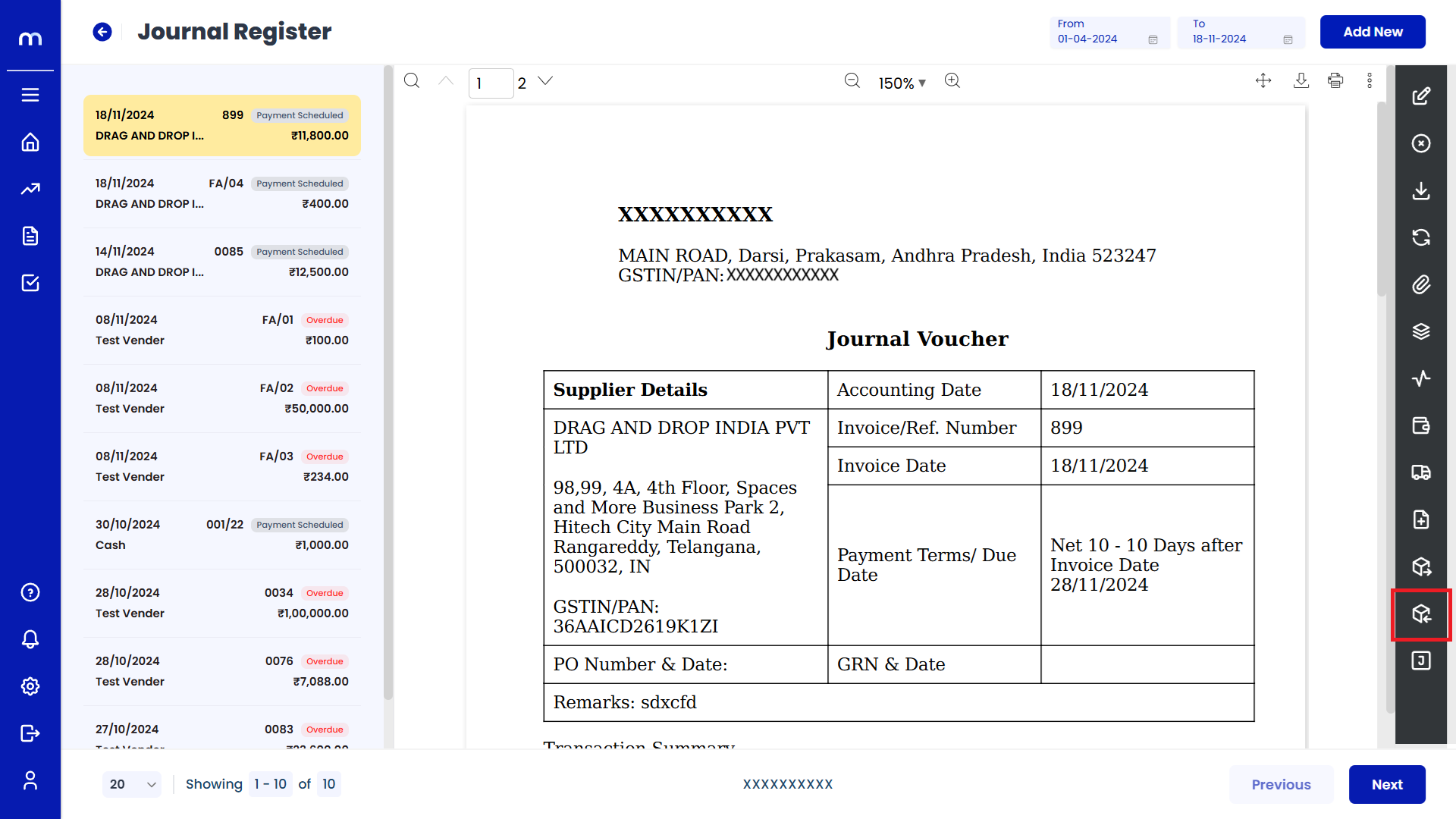
Click on Shipping Bill
Journal Register Template page will be displayed as fallows and Click on Shipping Bill button.
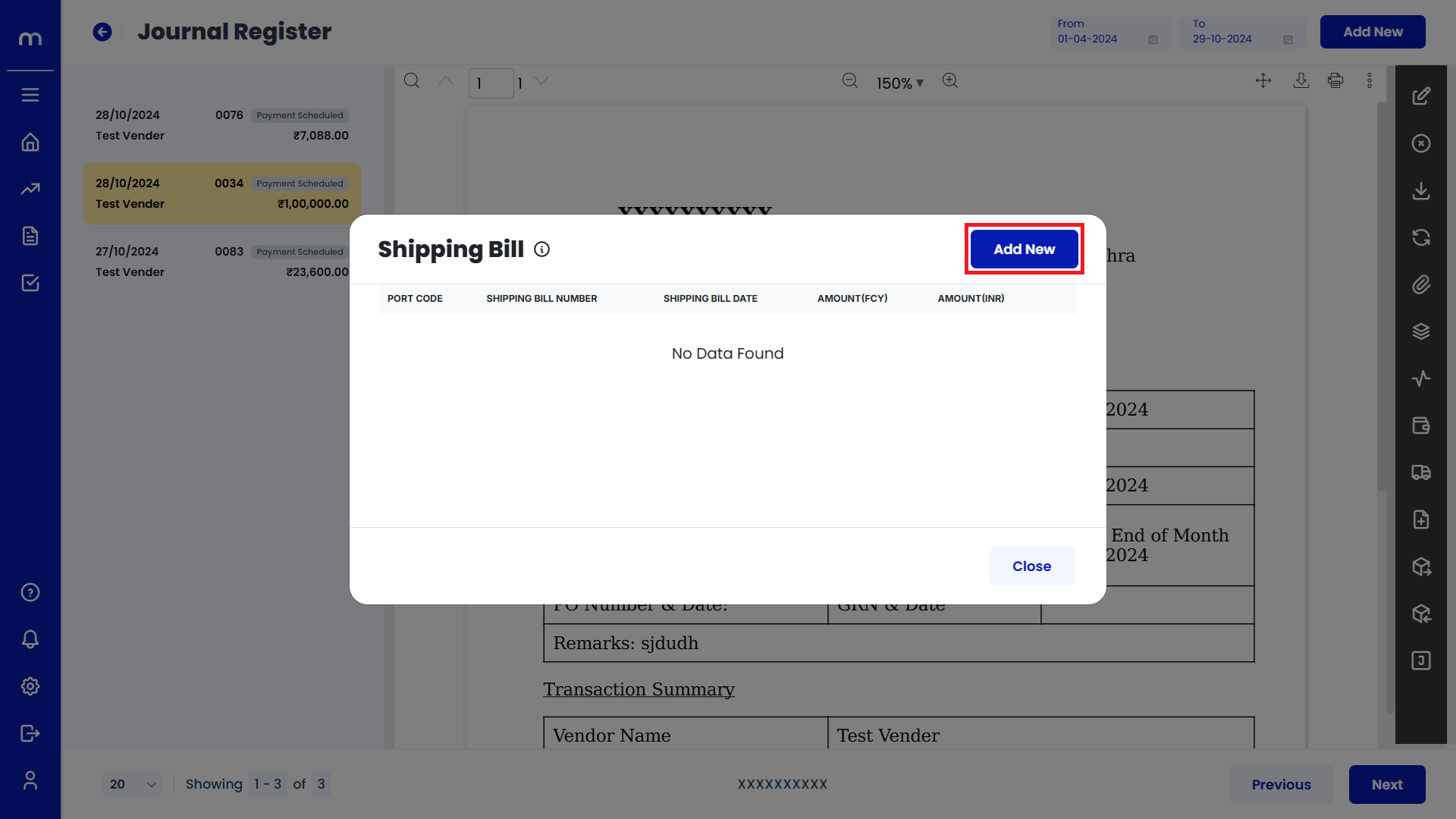
Click on Add New
Journal Register page will be displayed as fallows and Click on Add New button.
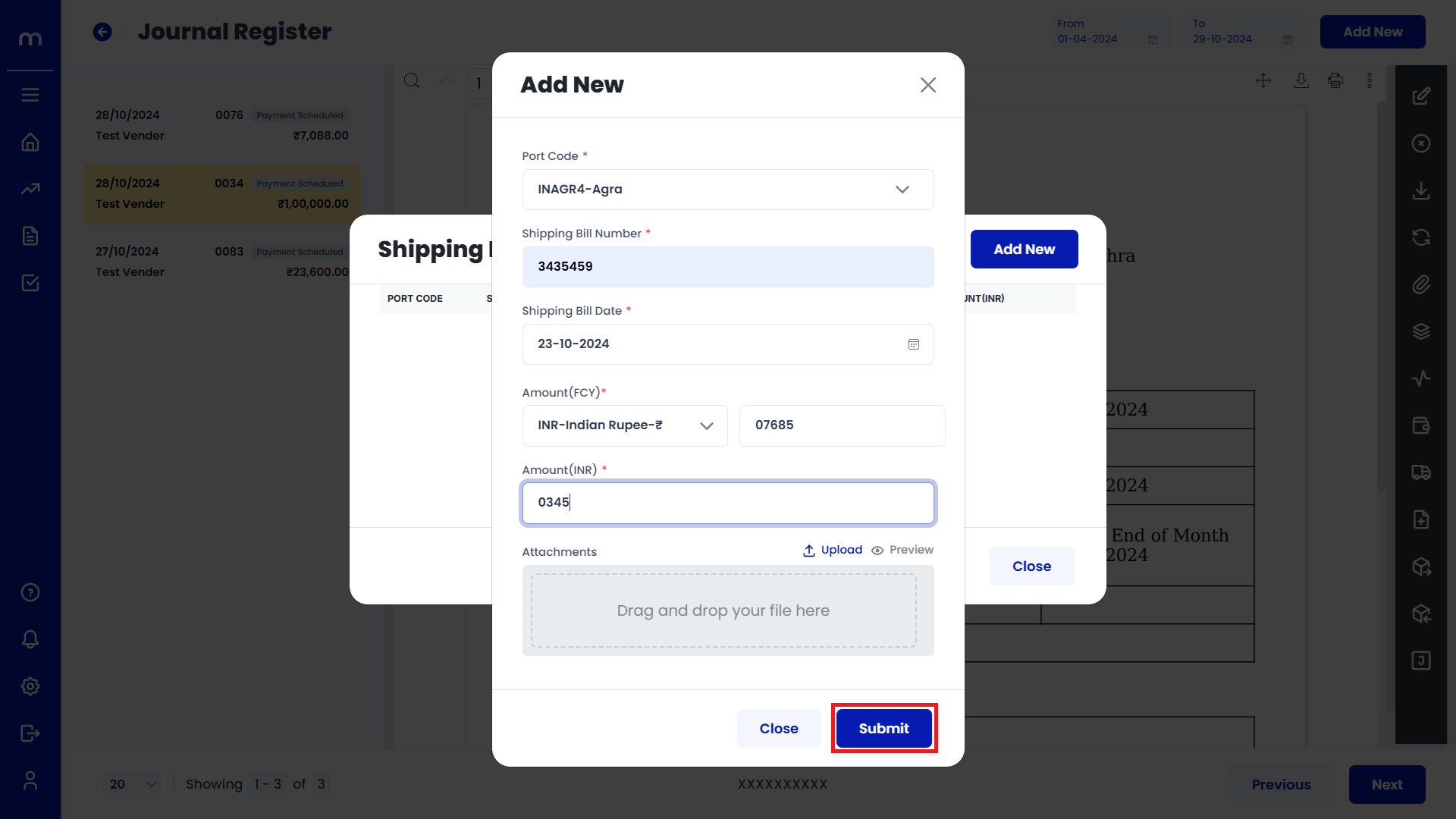
Click on Submit
Add New page will be displayed as fallows, Fill in all required details and Click on Submit button.
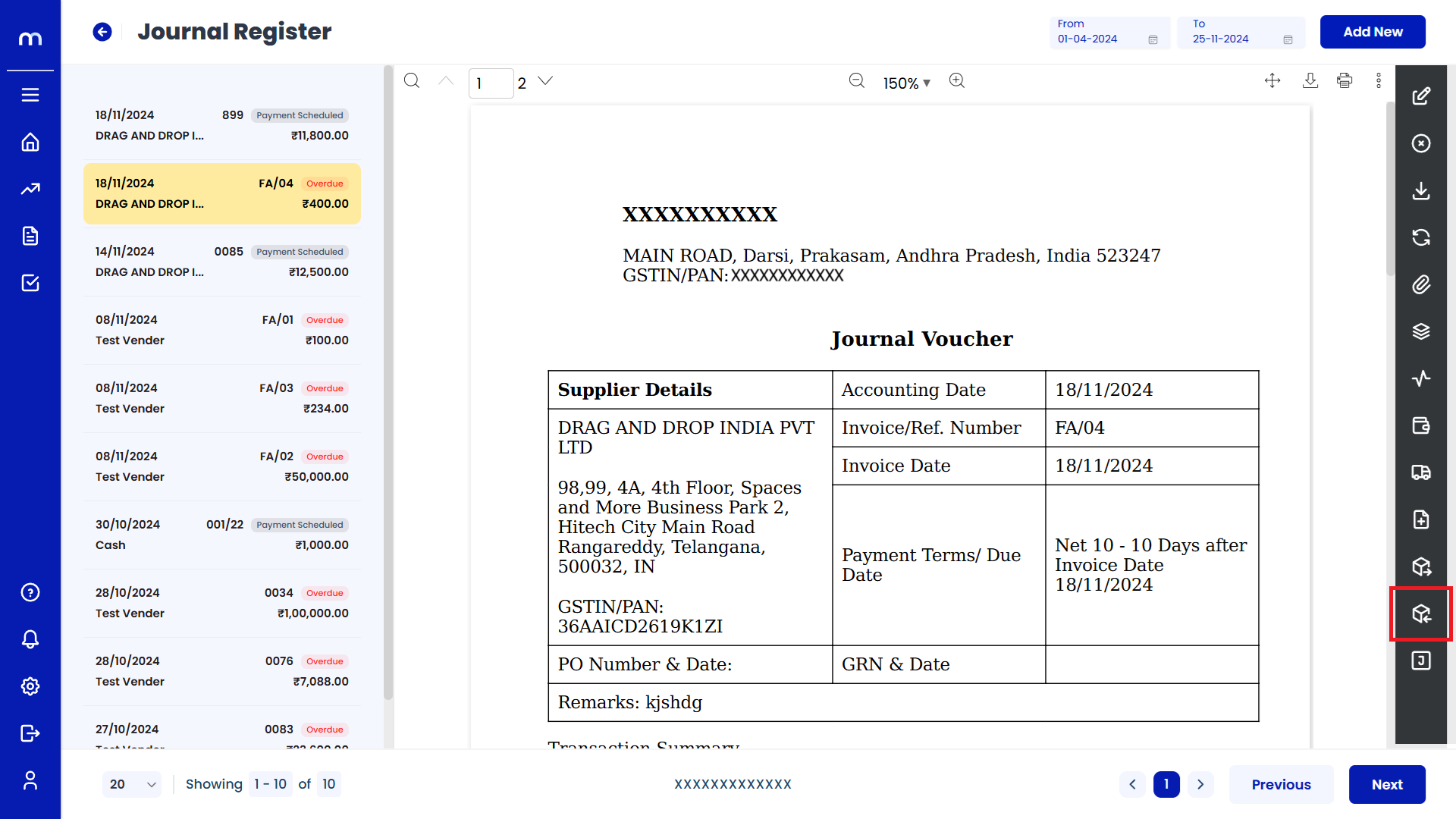
Click on Bill of Entry
Journal Register Template page will be displayed as fallows and Click on Bill of Entry button.
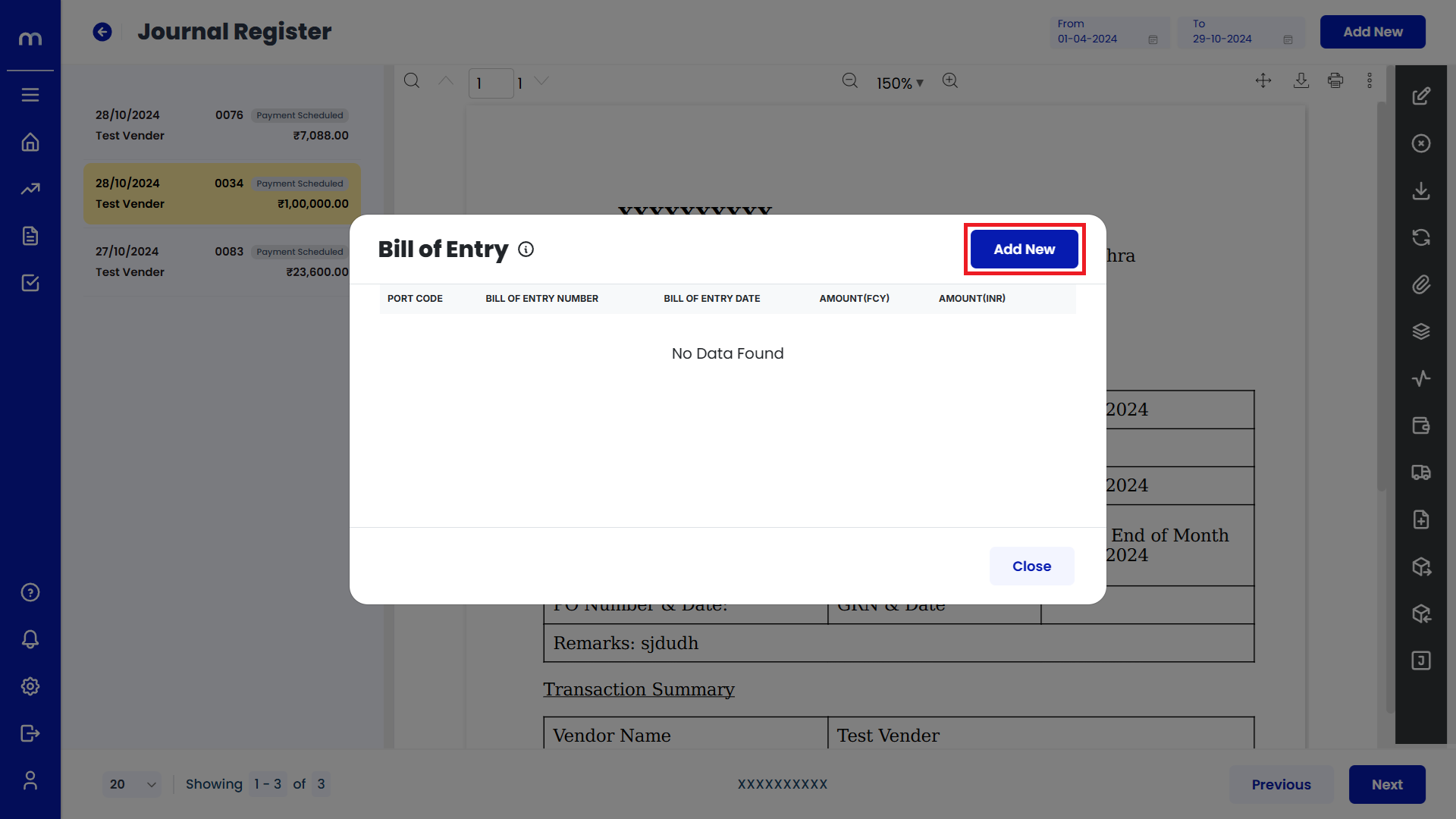
Click on Add New
Bill of Entry page will be displayed as fallows and Click on Add New button.
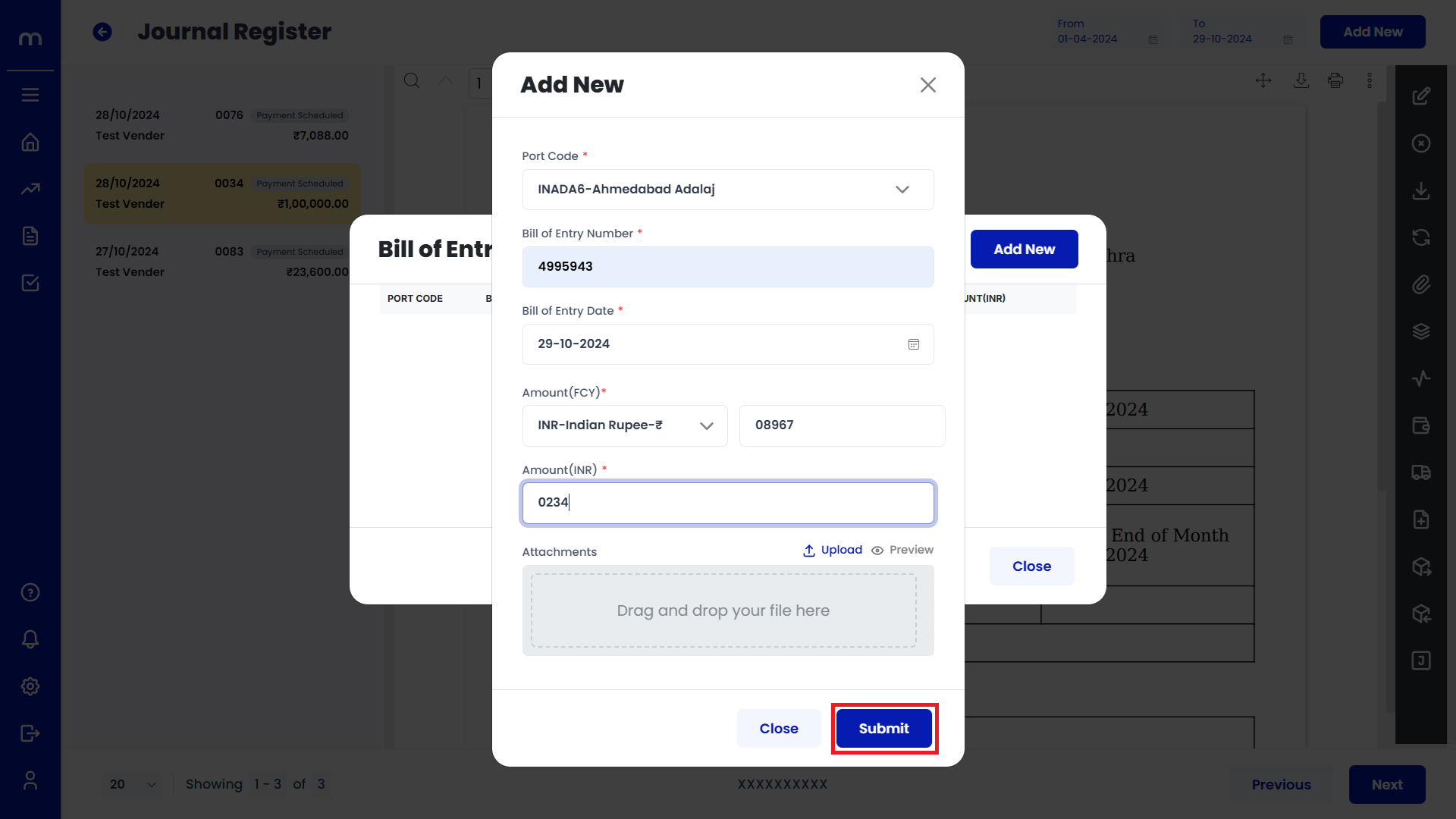
Click on Submit
Add New page will be displayed as fallows, Fill in all required details and Click on Submit button.
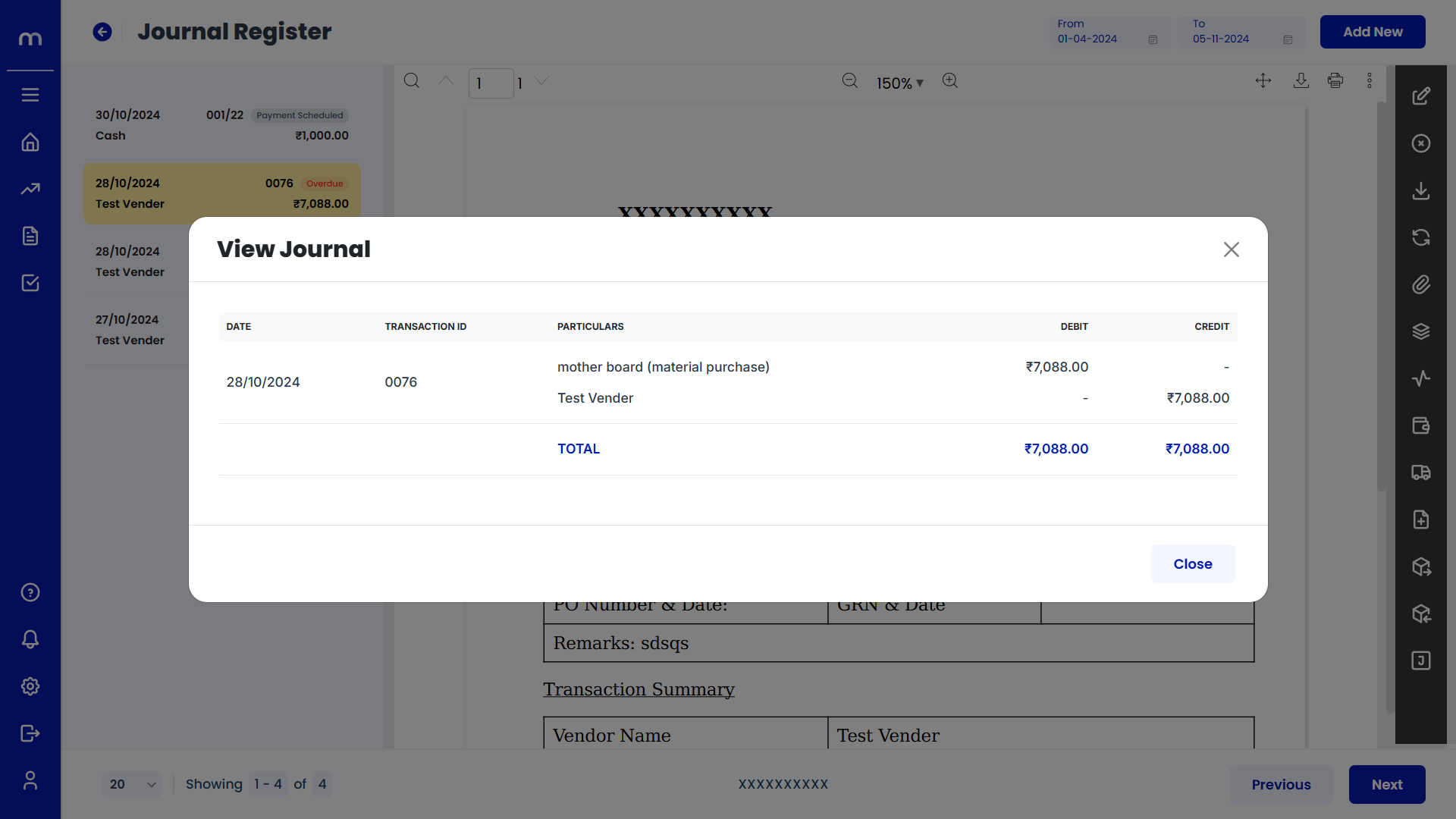
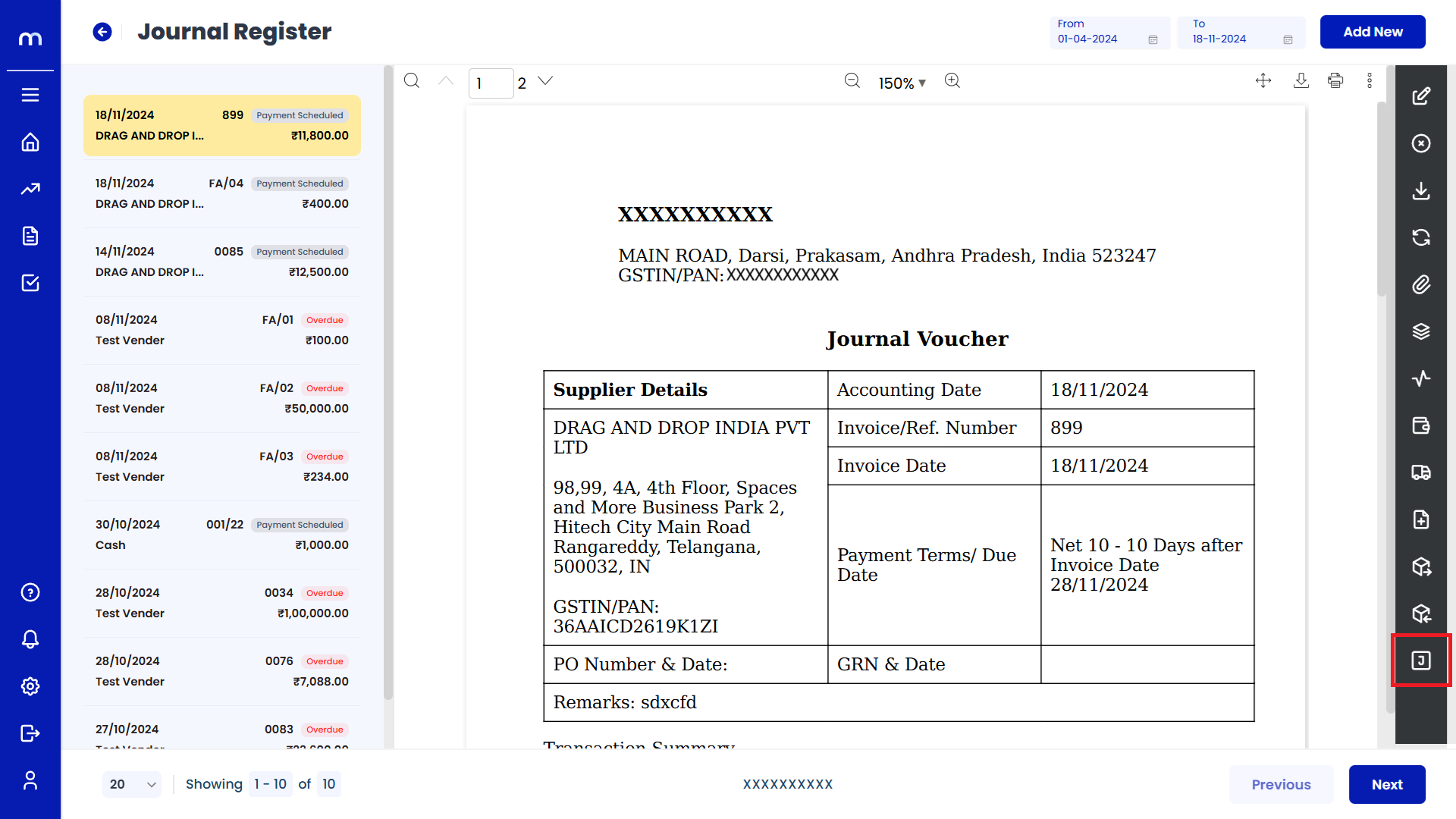
Click on View Journal
Journal Register Template page will be displayed as fallows and Click on View Journal button. Then Journal List was displayed.